
Make a bank deposit
Group checks into a deposit, print a deposit slip for the bank, and mark the checks deposited in one step.
A deposit is a group of checks you take to the bank together. SlabBoard adds up the checks, prints a deposit slip, and marks every check in it as deposited at once, so your records match what the bank received.
Before you start
- You need the Owner, Admin or Office role. Sales users can't see Deposits.
- Checks must be recorded first. See Track checks from pickup to cleared.
- You start a deposit from the Checks screen. Finance → Deposits has no "new" button.
How a deposit works
| Step | Deposit status | Check status |
|---|---|---|
| Add checks to a deposit | Open | In Deposit Batch |
| Take it to the bank and click Mark deposited | Deposited | Deposited |
| The bank releases the funds and you click Cleared | (stays Deposited) | Cleared |
Marking a deposit as made can't be undone, so do it after the bank has the checks.
Start a deposit
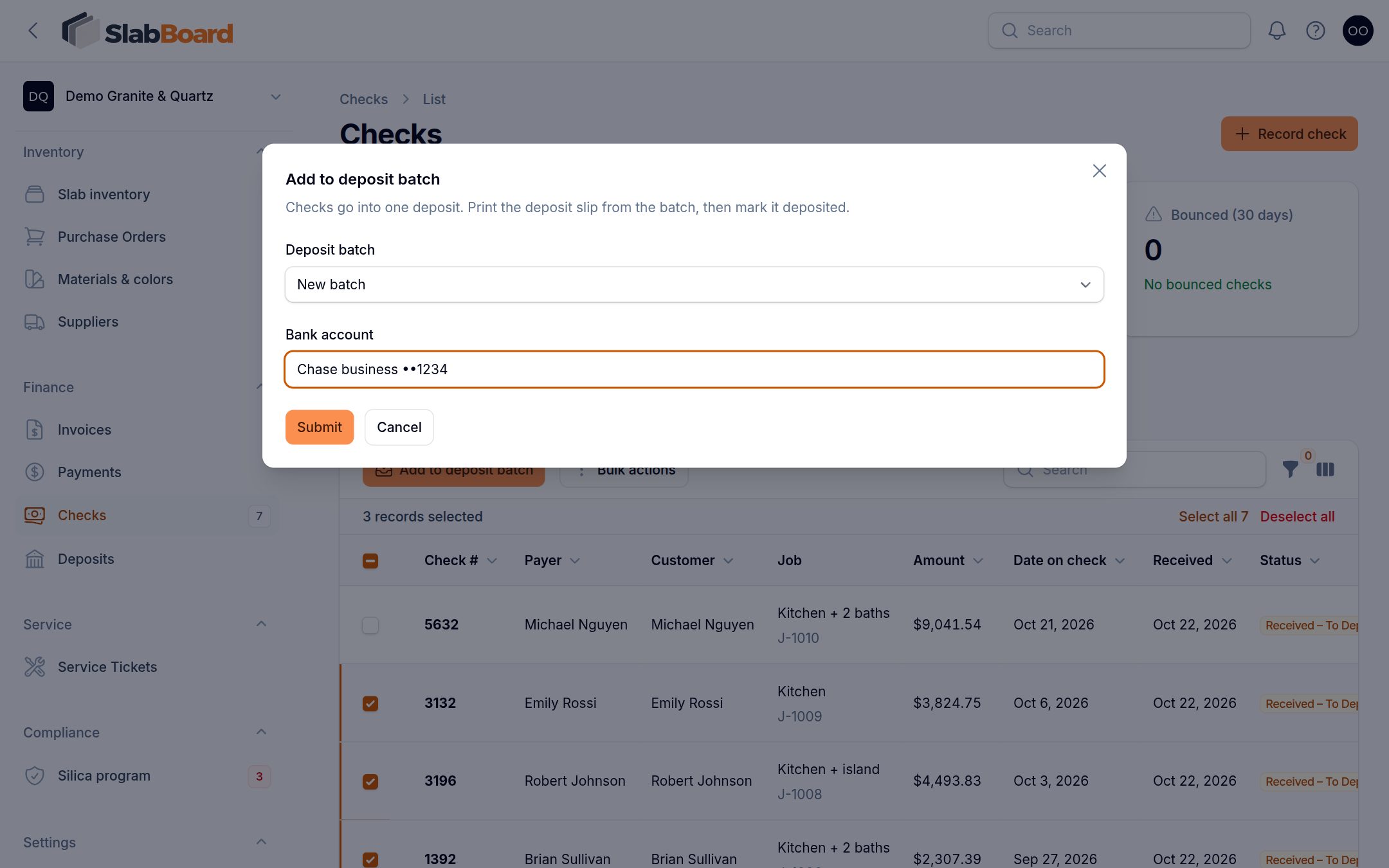
- Go to Finance → Checks. The To deposit tab opens.
- Tick the checks you are taking to the bank.
- Click Add to deposit batch.
- Leave Deposit batch on New batch, and type the Bank account (for example, "Chase business ••1234").
- Click Submit. You see how many checks were added, the deposit number (like DEP-1001) and the total.
- Click Open batch to go to the deposit.
To add more checks to a deposit that is still open, pick it in Deposit batch instead of New batch.
Important: Post-dated checks can't go into a deposit before their Do not deposit before date. If you select one, you see "Post-dated checks can't be deposited yet" with the date for each. Unselect them and try again. Checks that are already in a deposit, deposited, or voided can't be added either.
Print the deposit slip
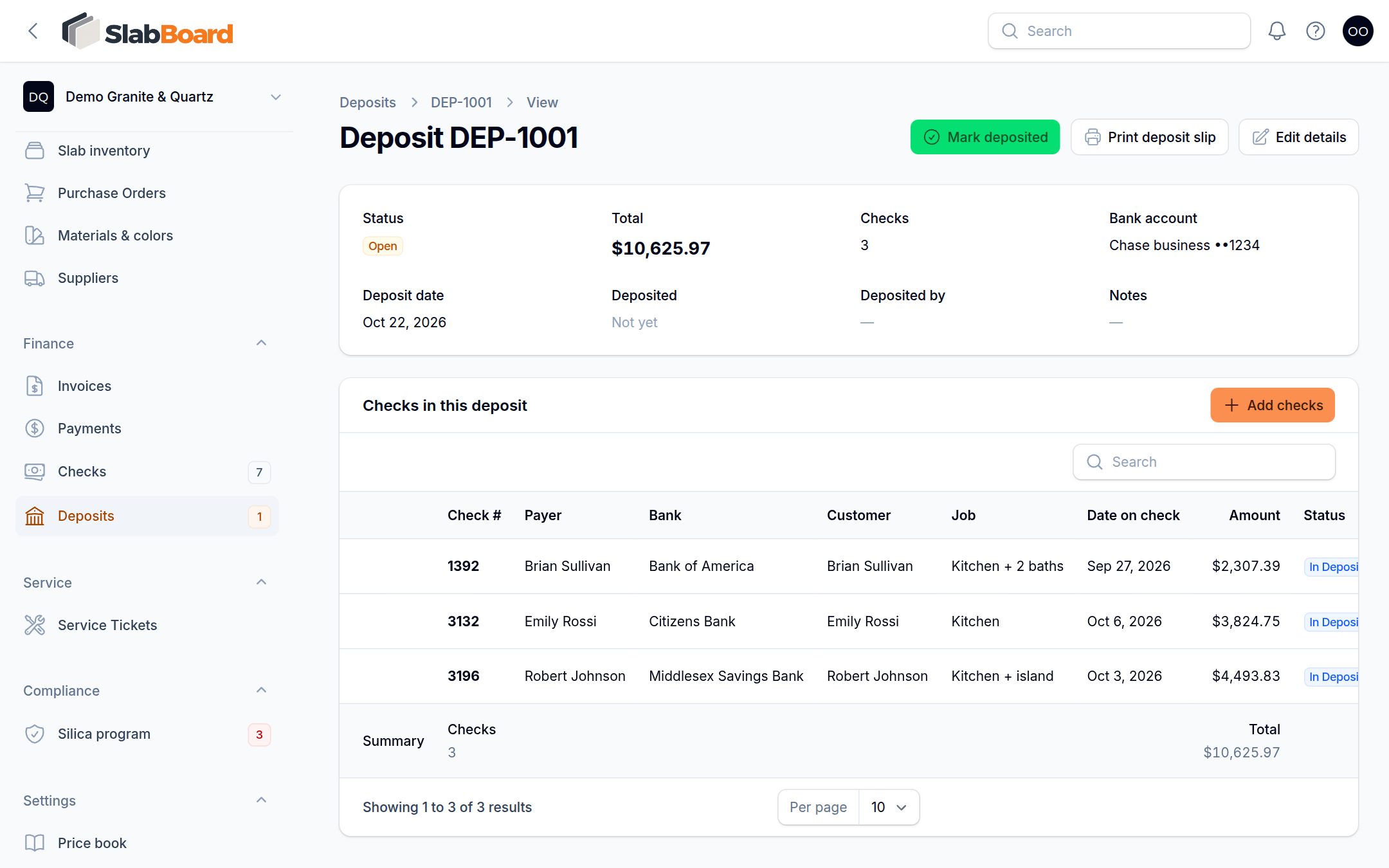
- Open the deposit under Finance → Deposits.
- Click Print deposit slip. A PDF opens.
The slip lists each check (Check #, payer, customer, job, amount), the Total deposit, and blank lines for Deposited by and Bank receipt #. Staple it to your bank receipt for your records. You can also print it from the list with Deposit slip.
Tip: Compare the slip's total with your bank deposit ticket before you leave the office. A wrong amount is much easier to fix now than after the bank posts it.
Change what is in the deposit
While the deposit is Open, on the Checks in this deposit tab you can:
- Click Add checks and pick from Checks waiting to be deposited.
- Click Remove on a row. The check goes back to "To deposit".
Use Edit details to change the Bank account, Deposit date or Notes.
Mark the deposit as made
- After you drop off the checks, open the deposit.
- Click Mark deposited and confirm. The message shows how many checks and how much money will be marked.
Every check in the deposit becomes Deposited, and the deposit records who marked it and when.
After the deposit
- When your bank shows the funds are available, mark the checks Cleared. On Finance → Checks, open the Deposited tab, select the checks and use Mark cleared.
- If the bank returns a check, open it and use Mark bounced. The payment is reversed and the amount is owed again on the invoice. See Track checks from pickup to cleared.
Find past deposits
Finance → Deposits lists each deposit with Deposit #, Deposit date, Bank account, Checks, Total and Status. Filter by Status to see open ones. The number next to Deposits in the menu counts open deposits with checks that haven't gone to the bank yet.
Related
Still stuck?
Write to us and a real person will answer. [email protected]