
Get paid online by card or bank transfer
Connect your Stripe account so customers can pay invoices by card or ACH from the invoice link, and payments are recorded for you.
With online payments on, the invoice link you send has a Pay button. The customer pays by card or bank transfer (ACH), the money goes straight to your own Stripe account and bank, and SlabBoard records the payment on the invoice by itself. No check to pick up, no trip to the bank.
Before you start
Online payments work only when all of these are true:
- Your plan is Pro or Premium.
- You are an Owner or Admin. Other roles can't open Settings → Online payments.
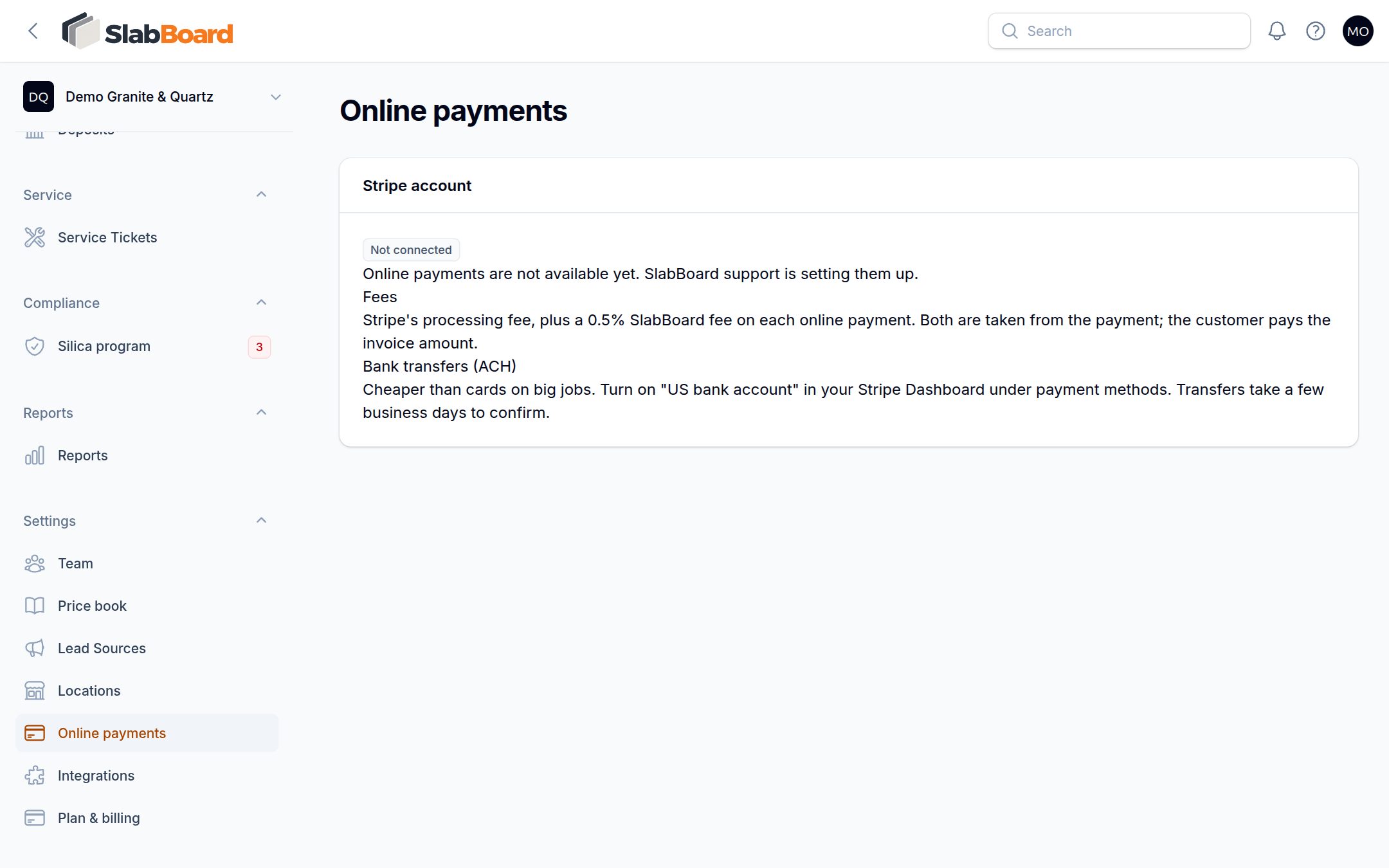
- SlabBoard has turned on online payments for your account. If you see "Online payments are not available yet. SlabBoard support is setting them up.", there is nothing to click yet. Contact SlabBoard support.
- You finished the Stripe setup, and the status on Settings → Online payments reads Active: customers can pay online.
Until every item is true, invoice emails, texts and links simply show "View invoice" and the check instructions. Nothing breaks; there is just no Pay button.
Connect your Stripe account
- Go to Settings → Online payments.
- Click Connect Stripe. You go to Stripe's own setup pages.
- Enter what Stripe asks for: business details, the bank account for payouts, and identity information. Stripe sets the account up in US dollars.
- When you finish, Stripe sends you back to SlabBoard and the status refreshes.
Understand the status
| Status | What to do |
|---|---|
| Not connected | Click Connect Stripe |
| Setup not finished | Stripe still needs details. Click Continue Stripe setup |
| Stripe is reviewing the account | Wait a few minutes, then click Check status |
| Active: customers can pay online | You are ready |
Open Stripe opens your Stripe Dashboard in a new tab.
Turn on bank transfers (ACH)
Cards work by default. ACH is cheaper than cards on big jobs, but you turn it on in Stripe, not in SlabBoard:
- Click Open Stripe.
- In your Stripe Dashboard, go to the payment methods settings and turn on US bank account.
Bank transfers take a few business days to confirm. The payment shows up in SlabBoard only after the bank confirms it.
Send a payment link
- Open an invoice and click Send. The dialog is titled Send payment link.
- Choose email and, on plans with text messages, a text.
- Click Send.
The email button reads "View and pay online". You can also use Copy link and paste the link anywhere. After a customer accepts a quote, the quote page also offers a link to pay the deposit online.
What happens when a customer pays
- The customer always pays the full current balance of the invoice. They can't pay part of it online. The balance must be at least $0.50.
- The payment is recorded on the invoice with method Online (Stripe) and a reference that starts with "Stripe pi_". The invoice usually becomes Paid.
- Owners, Admins and Office users get a notification in SlabBoard's bell: "Paid online" with the amount and invoice. No email is sent to you.
- Stripe emails the customer a receipt.
The amount on the payment is what the customer paid, before fees.
Fees
Two fees come out of each online payment:
- Stripe's processing fee, at your Stripe account's rates.
- A 0.5% SlabBoard platform fee.
Both are taken from the payment before it reaches your Stripe balance. The customer pays the invoice amount, with no surcharge added. Check your Stripe Dashboard for the exact fees and payouts; SlabBoard doesn't show them.
Limits to know
Important: Refunds and disputes are handled in your Stripe Dashboard. You are the seller, so you manage them there. SlabBoard doesn't see them, so after a refund the payment still shows as completed and the invoice as paid.
- Online payments can't be edited, deleted or reversed in SlabBoard.
- You can't enter an "Online (Stripe)" payment by hand. If a customer paid you through Stripe some other way, record it with another method, such as Credit Card.
- QuickBooks sync is coming soon. There is no export of payments today.
Related
Still stuck?
Write to us and a real person will answer. [email protected]