
Track checks from pickup to cleared
Keep photos of every check, see which checks are still in the office, and follow each one until the bank clears or bounces it.
Most countertop jobs are still paid by check, and checks get lost in trucks, desk drawers and jacket pockets. Finance → Checks shows every check you received, with photos, and where it is right now: still in the office, in a deposit, at the bank, cleared or bounced.
Before you start
- You need the Owner, Admin or Office role. Sales users can't see Checks.
- Checks get into SlabBoard three ways: Record a payment with Method = Check, Record check on this screen, or Collect check in the field app.
Check statuses
| Status | What it means | How it gets there |
|---|---|---|
| Received – To Deposit | In your hands, not at the bank yet | Recorded, or removed from a deposit |
| In Deposit Batch | Added to a deposit that isn't made yet | Add to deposit batch |
| Deposited | Taken to the bank | Mark deposited on the deposit |
| Cleared | The bank released the funds | Cleared |
| Bounced | The bank returned it | Mark bounced |
| Void / Returned | Given back or entered by mistake | Void / returned |
The normal path is Received → In Deposit Batch → Deposited → Cleared. A check counts as paid on the invoice as soon as it is recorded. If it bounces or is voided, the payment is reversed and the amount is owed again.
See what is still in the office
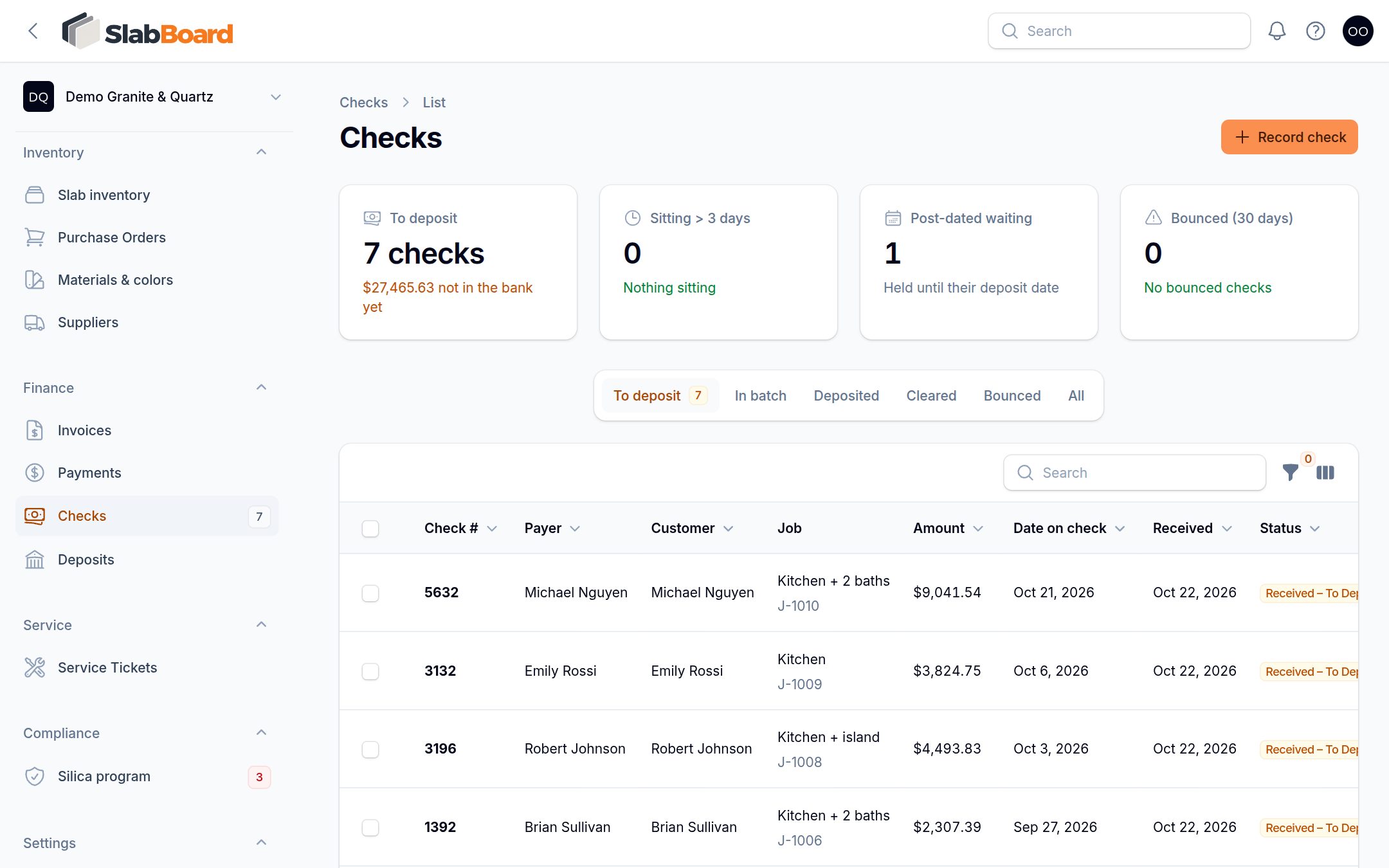
Open Finance → Checks. The To deposit tab opens first. The cards at the top show:
- To deposit: how many checks and dollars are not in the bank yet.
- Sitting > 3 days: checks received more than 3 days ago and still not deposited. Deposit these soon.
- Post-dated waiting: checks you can't deposit until their date.
- Bounced (30 days): bounced checks and the amount you need to collect again.
The Sitting column shows how long each check has waited. It turns red after 3 days. The number next to Checks in the menu turns yellow when any check is sitting that long.
Other tabs: In batch, Deposited, Cleared, Bounced and All. Voided checks appear only under All.
Tip: Search by check number, payer, customer, or amount (for example, "$2,226.11") to find one check fast.
Record a check
- Click Record check.
- Pick the Customer, then the Job, then the invoice in Apply to invoice. The amount fills in with the invoice balance.
- Check the Amount and Received on date.
- Upload the Front photo and Back photo (endorsement). If AI check scanning is on for your account, the front photo fills in the details; compare them with the paper check.
- Enter the Check # and the other check details. Set Do not deposit before for a post-dated check.
- Click Create. You see "Check recorded".
Checks your crew collects on site
Installers can tap Collect check on a job in the field app. They take a photo of the front (required) and back, and enter the Check # and Amount. They see "Check saved — hand it to the office", and the check shows up here right away as Received – To Deposit, with the note "Collected on site by" and their name.
Important: Field checks are saved as job credit, not against a specific invoice. The job balance goes down, but the invoice still shows the balance and can still show as overdue. You can't attach the check to the invoice later. Keep this in mind when you follow up on overdue invoices.
Open a check
Click a check to see large front and back photos (click to open full size), all the details, the invoice it paid, who received it, and when it was deposited and cleared. The History panel lists every change and who made it.
Use Edit to fix typos or add photos. The amount, customer, job and invoice can't be changed after the check is recorded.
Mark a check cleared
When your bank shows the funds are available, click Cleared on a Deposited check and confirm. To clear several, select them on the Deposited tab and use Mark cleared. Checks that aren't deposited yet are skipped.
When a check bounces
- Open the check and click Mark bounced. This works on Deposited and Cleared checks.
- Pick the Reason: Insufficient funds (NSF), Account closed, Stop payment, Signature missing / mismatch or Other.
- Optionally enter the Bank fee charged to you, for your records.
- Click Mark bounced.
The payment is reversed, and the amount shows as owed again on the invoice and the job. Contact the customer for a replacement payment.
Good to know: SlabBoard doesn't bill the bank fee to the customer. If you want to charge it, create a separate invoice.
Void a check
Use Void / returned when you gave the check back or recorded it by mistake. It works only before the check is deposited. Add a Note if you like. The payment is reversed and the check leaves any open deposit.
Related
Still stuck?
Write to us and a real person will answer. [email protected]