
Use the field app on the job
Start and finish visits, add photos and notes, report problems, upload template files, get the customer's signature and collect checks from your phone.
On site, everything happens on the job sheet. Each action is one big button and one short form. Whatever you save goes straight to the office, on the same job.
Before you start
- Open the job from My Day (tap Open job) or from Jobs.
- You need internet to save. The app has no offline mode. With a weak signal, wait until the save message shows before you close the app.
- Some buttons only show on the day of your visit: Start, Visit done / Install done, Not ready / no access and Customer sign-off.
Read the job sheet
From top to bottom:
- Job: status, today's visit (or "No visit today"), customer, phone (tap to call), address (tap for maps), material, edge, sink and square feet.
- Site readiness: six checks set by the office, like "Cabinets installed and level" and "Sink on site". You can read them but not change them. If something is wrong on site, use Not ready / no access or Add note.
- Pieces: each piece with area, size, edge and notes.
- Office notes: messages from the office.
- Punch list: open problems on this job.
- Photos and Notes from the field: what your crew already sent.
Prices only show if the owner turned that on for crews.
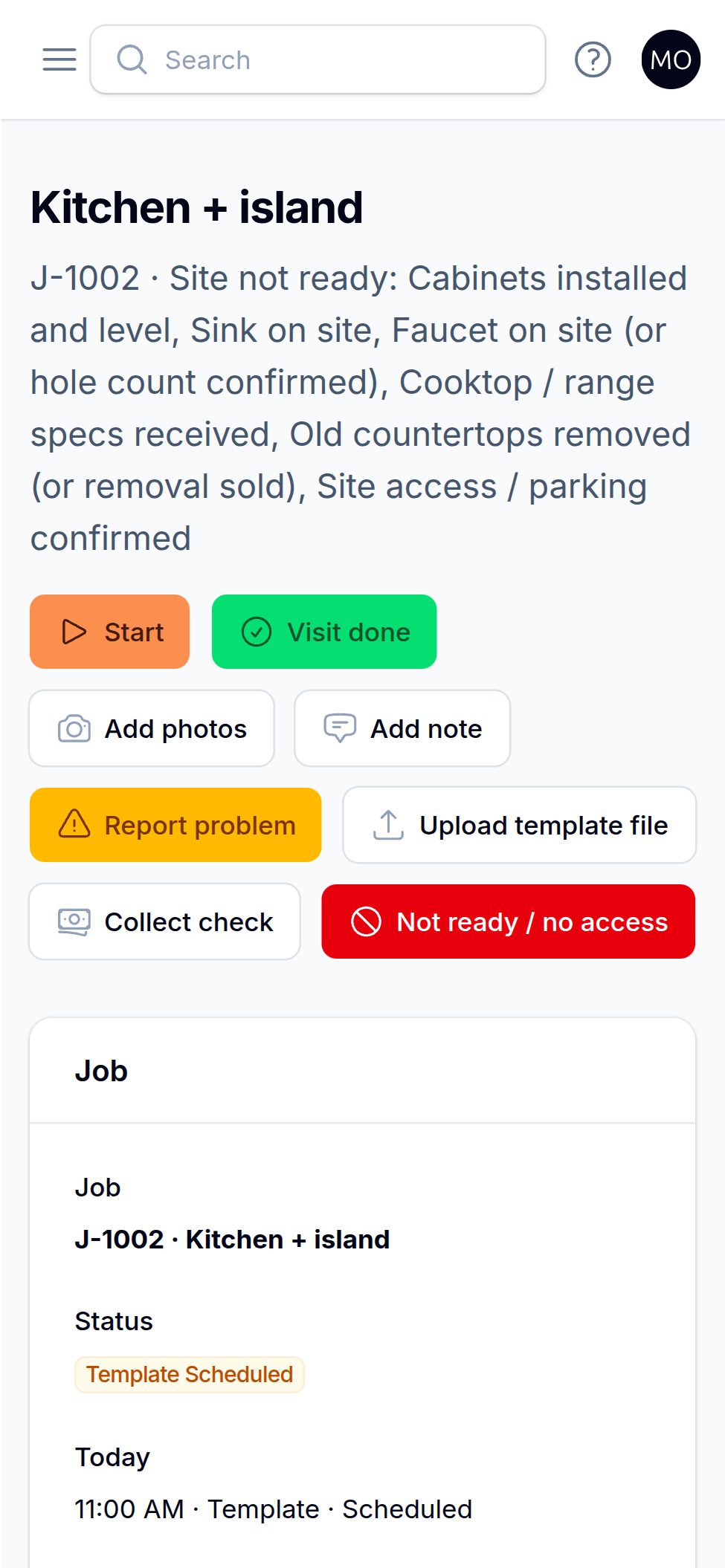
Every button and what the office gets
| Button | What you do | What the office gets |
|---|---|---|
| Start | Tap when you arrive. | The visit shows In Progress with the start time. |
| Visit done (template) / Install done (install) | Tap when you finish, then Yes, finish. | Visit Completed. After a template, the job moves to Templated. After an install, the job moves to Installed and its slabs are marked used. |
| Add photos | Pick a Category, take or choose up to 20 photos, add a caption if you want, tap Save. | Photos on the job, in the Photos tab, sorted by category. |
| Add note | Write in your language, tap Save. | A note in the job's Field notes tab, with your name and time. |
| Report problem | Write What needs fixing?, add a photo if you can, tap Save. | A new open punch item on the job. |
| Upload template file | Pick Measured with (Prodim Proliner, LT-55 / LT-2D3D, Flexijet, Manual / Wood Template or Other), choose the file, tap Upload. | The file in the job's Template files tab, ready to download. |
| Customer sign-off | Customer checks the work and signs with a finger. Tap Save signature. | The install is completed and the job moves to Completed, with the signer's name and signature. |
| Collect check | Photo of the front (and back), check number, amount, tap Save check. | A check payment on the job and in Checks, ready to deposit. |
| Not ready / no access | Write What happened?, tap Send to office. | The visit shows No Access / Not Ready, plus your reason as a field note. |
Start and finish a visit
- When you get there, tap Start.
- Do the work. Add photos and notes as you go.
- Before you leave, tap Visit done (or Install done).
- Tap Yes, finish.
You can tap Visit done without tapping Start first.
Send a template file
- Tap Upload template file.
- Under Measured with, pick your tool.
- Under File (DXF, PDF, photo, ZIP…), choose the file. Up to 100 MB.
- Add notes if needed. Tap Upload.
There is no form to type measurements in the app. Send the file from your templating tool, or photos of your wood template.
Get the customer's sign-off
This button shows only on install day.
- Ask the customer to check the work.
- Tap Customer sign-off.
- Check the Customer name.
- The customer signs inside the box with a finger.
- Tap Save signature.
If you see "Signature is missing", ask the customer to sign again. Signing off completes the job, so do it last.
Good to know: Signing off in the field does not send the customer a Google review request. The office sends that from the job.
Collect a check
- Tap Collect check.
- Take a photo of the Front of check. Add the Back of check if you can.
- Type the Check # and the Amount written on the check.
- Check Bank and Name on check.
- Tap Save check.
You see "Check saved — hand it to the office". Give the paper check to the office the same day.
Good to know: If the owner lets crews see prices, the amount is filled in with the job balance. Otherwise you type it.
Report the site is not ready
Use this when you can't do the visit: cabinets not set, no one home, no access.
- Tap Not ready / no access.
- Write what happened.
- Tap Send to office.
- Add photos with Add photos if you can.
Related
Still stuck?
Write to us and a real person will answer. [email protected]