
Get started with the field app
Sign in to the SlabBoard field app, put it on your phone's home screen, read My Day and switch the app to Portuguese or Spanish.
The field app is SlabBoard for templaters and installers. It runs on your phone. It shows your visits, the job details and the buttons you need on site. It works in English, Portuguese and Spanish.
Before you start
- The office adds you on Settings → Team with the role Templater or Installer. You get an email to set your password.
- The office puts you on a crew (for example Template Team or Install Crew 1). You only see visits for your crews.
- You need internet on the phone. The app has no offline mode.
Sign in
- On your phone, open the field app link from your office. It ends in /field (for example
.../field/login). - Type your email and password.
- Tap Sign in. The app opens on My Day.
Good to know: The invite email opens the office app after you set your password. That's fine, but on site always use the /field link. Forgot your password? The field sign-in page has no reset link. Open the office sign-in page (the same address with /app instead of /field) and tap Forgot password?, or ask the office to send a new invite.
Put the app on your home screen
Then you open SlabBoard with one tap, like any other app. The icon is called SlabBoard Field.
Android (Chrome or Edge)
- Sign in to the field app.
- Tap Install app at the top of the screen.
- Tap Install in the box that opens.
If you don't see Install app, open the browser menu (⋮) and tap Install app or Add to Home screen.
iPhone or iPad
- Open the field app in Safari. (The button doesn't show in Chrome on iPhone.)
- Tap Install app. A small box shows the steps.
- Tap the Share button in Safari.
- Choose Add to Home Screen, then Add.
- Open SlabBoard from the new icon.
Once the app is installed, the Install app button goes away.
Read My Day
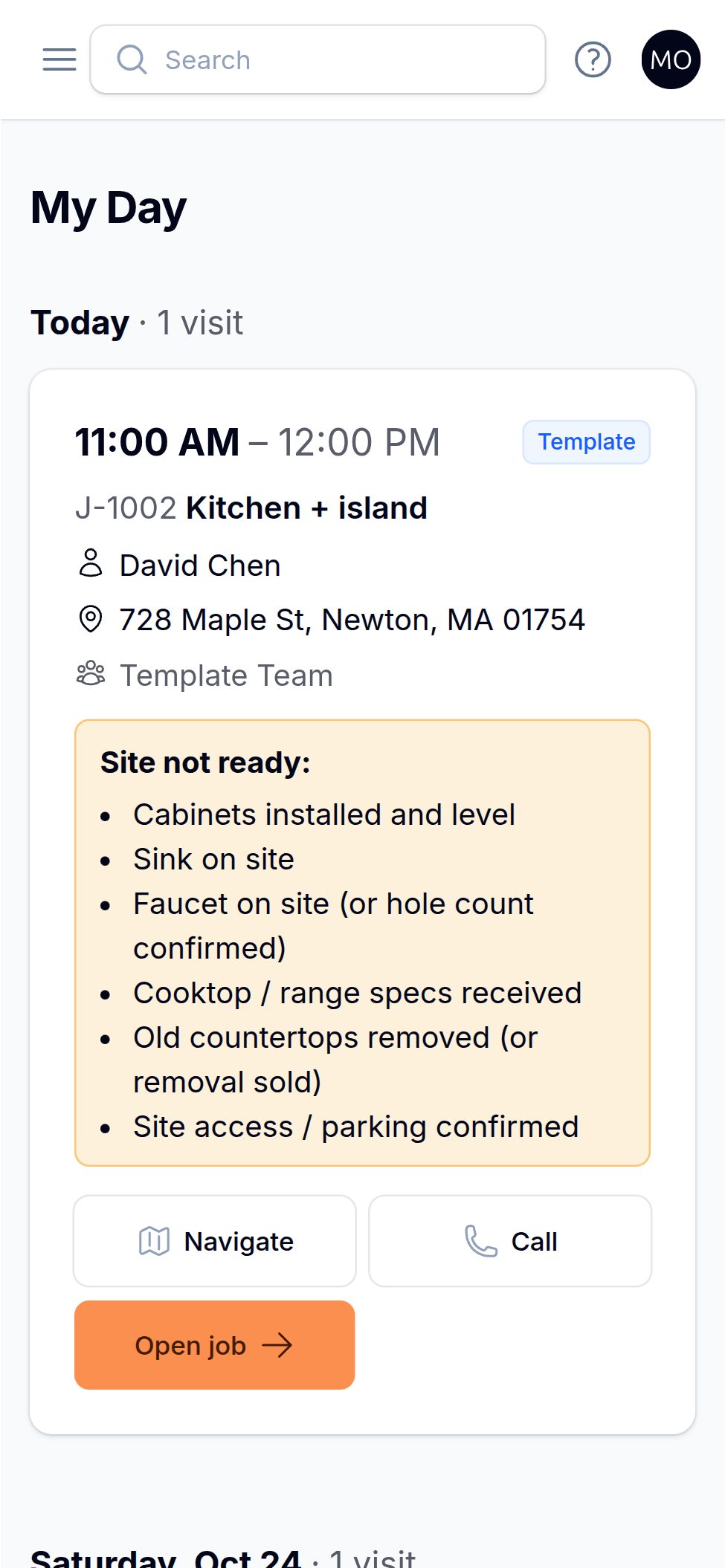
My Day is the home screen. It shows your visits from today through the next 7 days, grouped by day: Today, Tomorrow, then the date.
Each visit card shows:
- The time, for example 9:00 AM – 10:00 AM.
- The visit type: Template, Install, Delivery, Repair, Service, Site Visit or Estimate Visit.
- A status badge if the visit is In Progress, Completed or No Access / Not Ready.
- The job number and name, the customer, the address and your crew.
- Notes from the office, in a grey box.
- Site not ready: an amber box that lists what is still missing at the site, like "Sink on site". Read it before you drive out.
Buttons on each card:
| Button | What it does |
|---|---|
| Navigate | Opens Google Maps with directions to the job. |
| Call | Calls the customer. |
| Open job | Opens the job sheet, where you work on site. |
If the card has no address, phone or job, that button doesn't show.
Nothing for the next 7 days? You see "Nothing scheduled for the next 7 days." If you think that's wrong, ask the office to check that you are on the right crew.
Good to know: "Today" follows your shop's time zone, set by the office.
Find a job
Tap Jobs at the top. You see the jobs your crew has a visit for, today or later. The Next visit column shows when you go next. Search by job number or name.
A job leaves your list after your crew's last visit is done. Owners and office staff see all open jobs.
Change the language
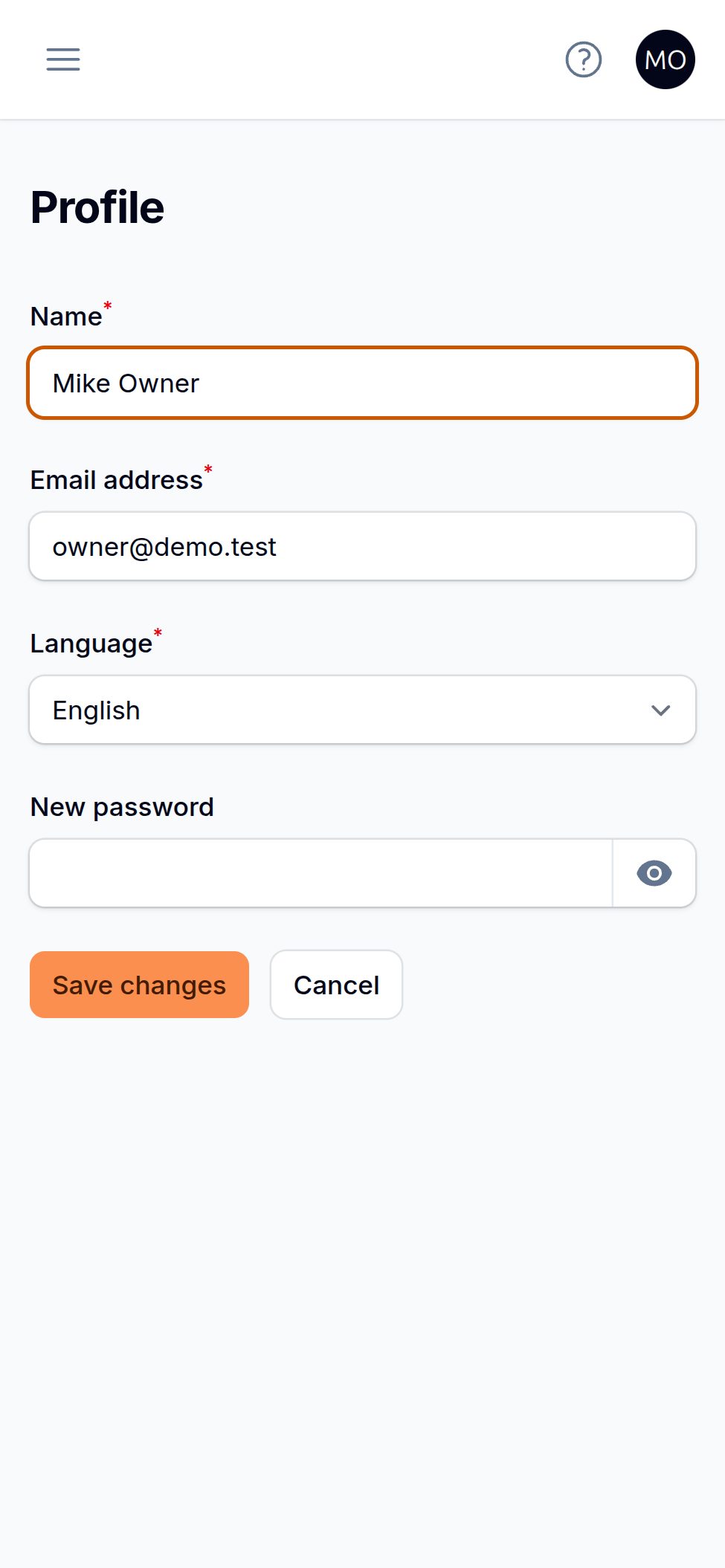
- Tap your name or picture at the top right.
- Tap Profile.
- Under Language, pick English, Português or Español.
- Tap Save changes. The app reloads in the new language.
The office can also set your language when they invite you. The sign-in page is always in English.
Tip: Write notes in your own language. On the Pro plan, the office gets them translated to English. See Use the field app on the job.
Related
Still stuck?
Write to us and a real person will answer. [email protected]