
Team members and roles
Invite your office staff and crews, give each person the right role, and change or remove access when people come and go.
Add everyone who works on your jobs: office, sales, templaters, installers and the shop crew. Every plan includes unlimited users, with no per-user fees. Each person's role decides which screens they see.
Before you start
Only the Owner and Admin roles can open Settings → Team.
Invite a team member
- Go to Settings → Team (or click your name, then Team & users).
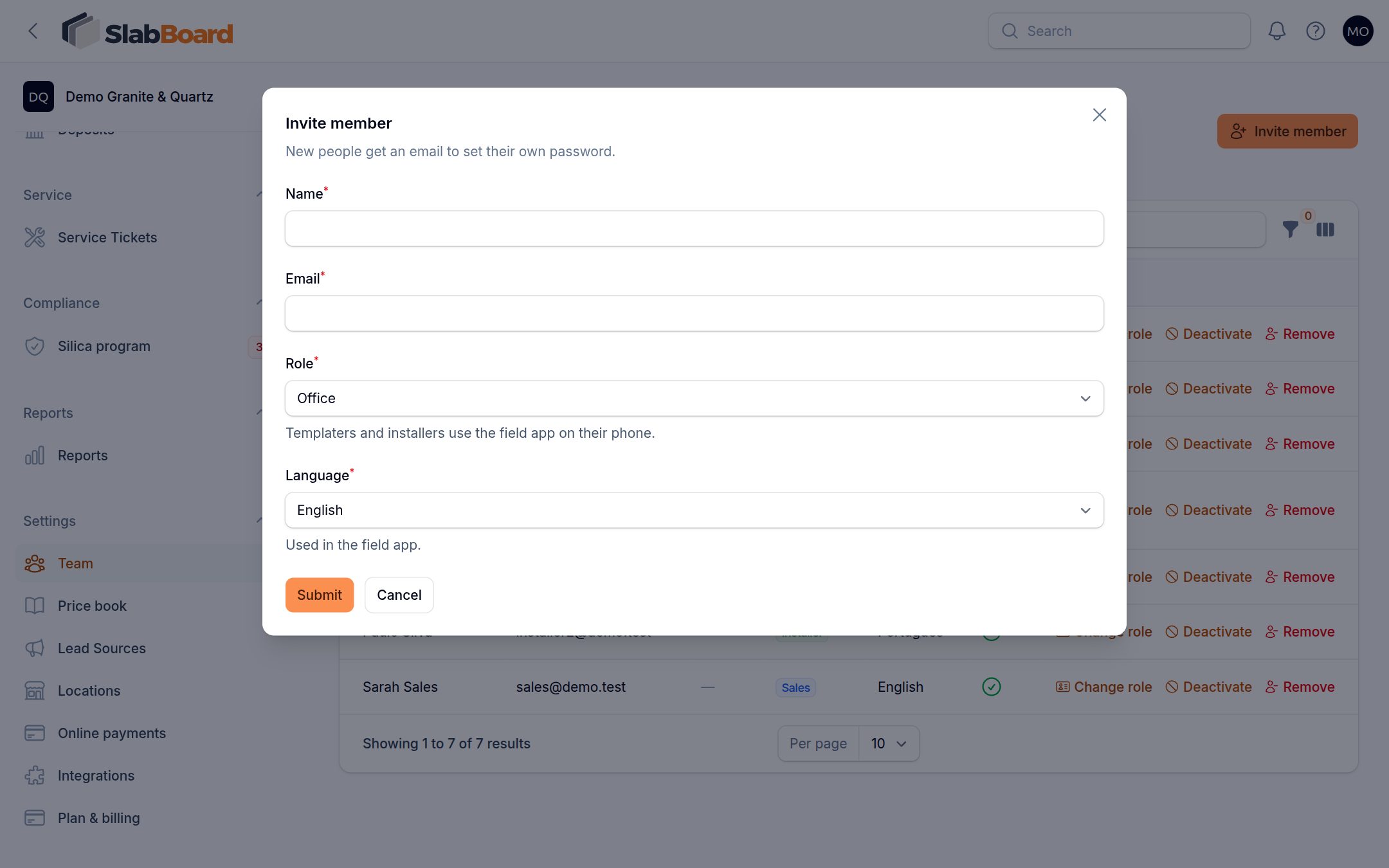
- Click Invite member.
- Enter the person's Name and Email.
- Pick a Role (see the table below).
- Pick their Language: English, Português or Español. This is the language of the field app for that person.
- Click Submit.
New people get an email to set their own password. If the person already has a SlabBoard login at another shop, no email is sent: they're added right away and can switch to your shop after they sign in.
Tip: Templaters and installers use the field app on their phone. After they set their password, have them sign in at your field app address and tap Install app.
Roles
| Role | What they can do |
|---|---|
| Owner | Everything, including Team, Company settings, Plan & billing, Integrations, Online payments, Locations and Reports. |
| Admin | Same as Owner. |
| Office | Leads, customers, quotes, materials, price book, jobs, schedule, crews, production, slabs, purchasing, invoices, payments, checks, deposits, service tickets, silica records and lead sources. |
| Sales | Leads, customers, quotes, materials, jobs, appointments, the schedule board, slabs, suppliers, invoices and service tickets. No payments, checks or price book. |
| Templater | The field app for their crew's visits. In the office app: Today, Tasks, Jobs and the schedule board. |
| Installer | Same as Templater, plus service tickets. |
| Fabricator | Today, Tasks, Jobs, the production board, remakes and slabs. In the field app, only visits of crews they belong to. |
Some screens also need a plan that includes them. For example, the production board needs Pro, and Reports need Premium.
Good to know: Templaters, installers and fabricators don't see prices unless you turn on Show job prices to the field crew in Company settings.
Good to know: In the field app, templaters and installers only see visits for crews they're a member of. Add them to a crew in Schedule → Crews, or their field app will be empty. Owner, Admin and Office see all work.
Change someone's role
- In Settings → Team, find the person.
- Click Change role, pick the new role, and save.
Deactivate or remove someone
- Deactivate: the person loses access to your shop but stays on past jobs and records. Use Reactivate to bring them back.
- Remove: takes the person off your team. Their login stays, in case they work for another shop.
Every shop needs at least one active Owner. You can't demote, deactivate or remove the last one. Make someone else an Owner first.
Important: Deactivate people the day they leave. Their login keeps working at your shop until you do.
Change a name, email or language
The Team page only changes roles and access. People update their own name, email and password:
- In the office app: click your name, then My profile & password.
- In the field app: open the profile page from the user menu. This page also has Language.
Related
Still stuck?
Write to us and a real person will answer. [email protected]