
Locations
Add your shops and showrooms as locations and tag each job with the location that handles it.
If your business has more than one shop or showroom, add each one as a location. Then you can tag each job with the location that handles it, so everyone knows where the work belongs.
Before you start
- Locations need the Premium plan.
- Only the Owner and Admin roles can open Settings → Locations.
Add a location
- Go to Settings → Locations.
- Click New location.
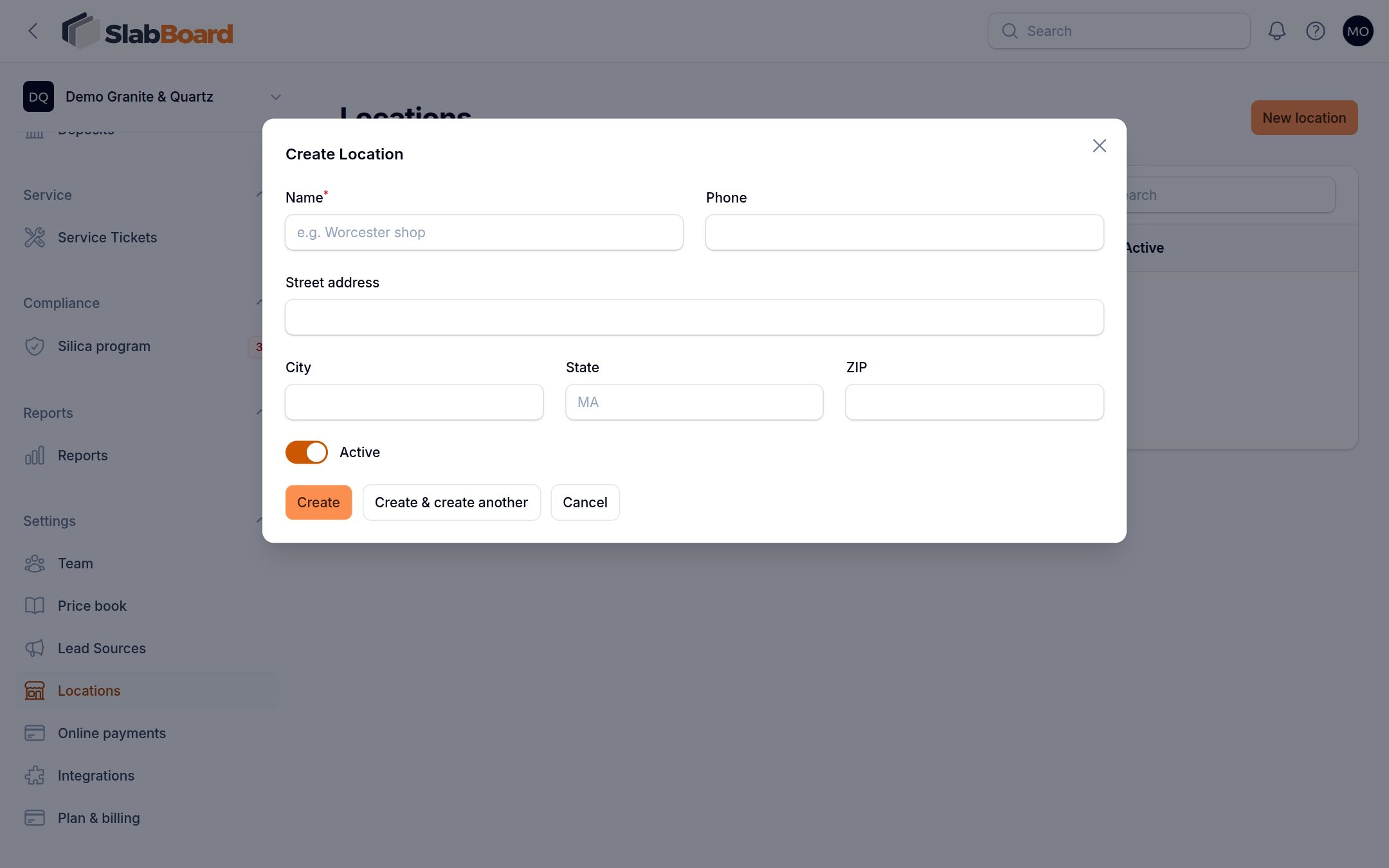
- Enter the Name (for example "Worcester shop") and the Phone.
- Enter the address.
- Leave Active on.
- Click Create.
Tag a job with a location
As soon as your shop has at least one location, the job form shows a Location field.
- Open the job and click Edit.
- Pick the Location.
- Save the job.
When a quote that has a location is approved, the new job keeps that location. Slabs keep their location when you move them.
Edit or turn off a location
- In Settings → Locations, click Edit on the location to change its name, phone or address.
- To stop using a location without deleting it, turn off its Active switch in the list.
Good to know: Turning a location off doesn't remove it from jobs that already have it.
What locations don't do yet
Locations are a label on jobs. Today:
- Team members aren't assigned to a location. Everyone on your team sees all jobs they have access to.
- Reports, the dashboard and the schedule aren't filtered by location.
- Company settings (tax rate, terms, timezone) are the same for every location.
If your shop needs any of these, let us know at [email protected].
Related
Still stuck?
Write to us and a real person will answer. [email protected]