
Jobs: statuses and the job page
Find any job, read its status at a glance and use the job page to run it from sold to completed: pieces, schedule, slabs, field photos and money.
A job is a sold project, from the signed quote to the last payment. Everything about it lives on one page: the customer and site, pieces and drawing, schedule, slabs, shop steps, field photos and notes, change orders and money. Most of the status changes happen on their own as work gets done.
Before you start
- Jobs are on every plan.
- Owners, Admins, Sales, Office, Templaters, Installers and Fabricators can open Jobs → Jobs.
- Templaters, installers and fabricators don't see prices, change orders or the money tabs unless the owner turns on Show job prices to the field crew in Company settings → Team access.
Create a job
Most jobs are created for you when a quote is accepted, either signed online by the customer or with Mark accepted. The new job gets the customer, address, material, edge, sink, contract amount, the drawing and the slab layout. See Turn a quote into a job.
To add a job without a quote:
- Go to Jobs → Jobs and click New job.
- Fill in Job name, Customer and the site address. Add Builder / trade partner, PO # and Lot / unit for builder work.
- Under Material & specs, pick the Material, Edge profile, Sink and Sq ft.
- Under Money, enter the Contract (before tax) and Sales tax.
- Tick the Site readiness items you already know (cabinets installed, sink on site…).
- Click Create. The job gets a number like J-1011, the status Sold and the default shop steps.
Find a job
The Jobs list shows Job #, Name (with the customer), Status, Material, City, Contract and Sold date, newest first. Filter by Status, Salesperson or Builder. You can also type a job number, customer name, PO # or address in the search bar at the top of any page.
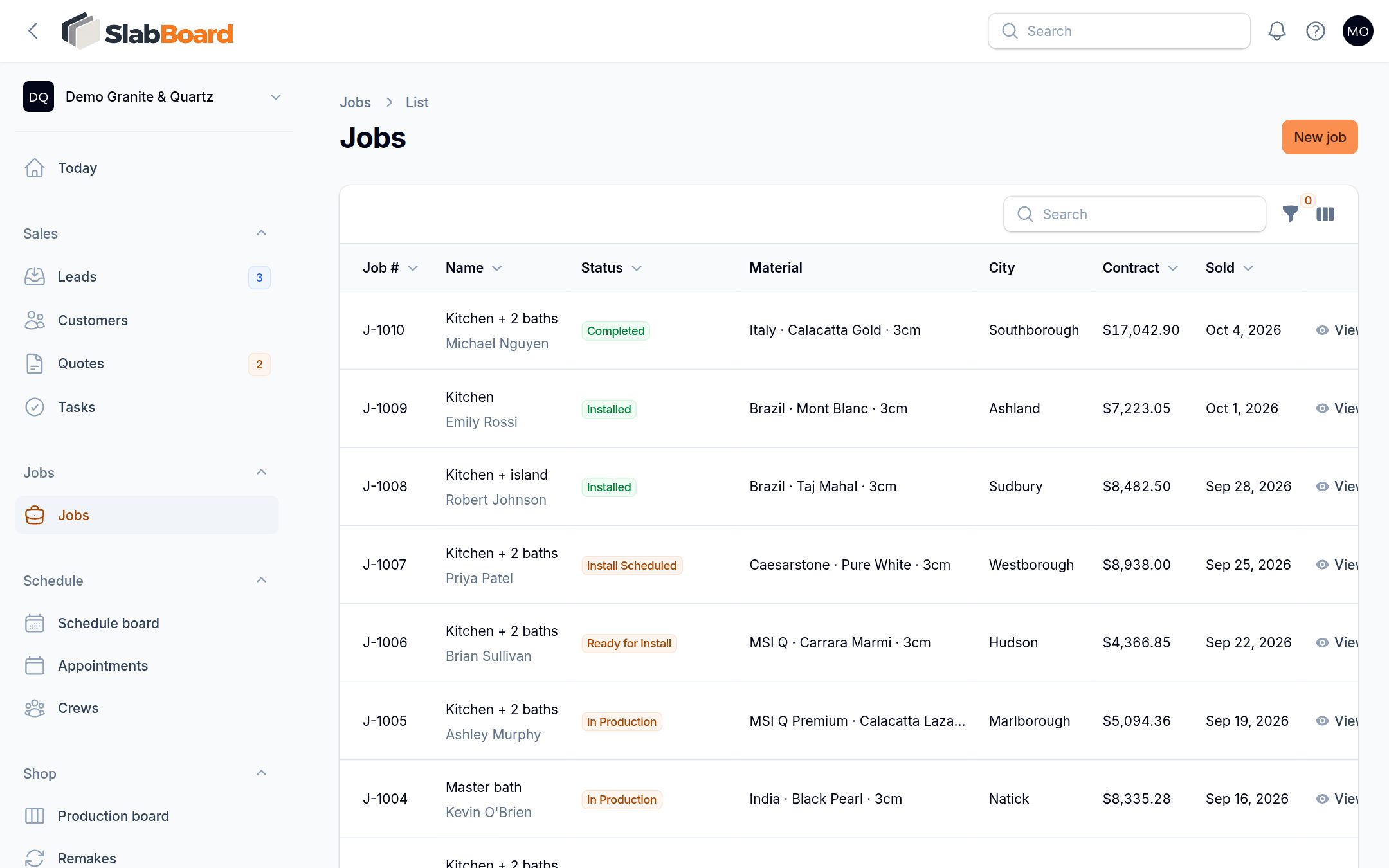
Job statuses
| Status | How the job gets there |
|---|---|
| Sold | Quote accepted, or new job |
| Template Scheduled | A template visit is scheduled |
| Templated | The template visit is marked Complete |
| Awaiting Layout Approval | The slab layout is sent to the customer |
| In Production | The customer approves the layout, or a shop step starts |
| Ready for Install | Every shop step is done or skipped |
| Install Scheduled | An install visit is scheduled |
| Installed | The install visit is marked Complete |
| Completed | You click Mark completed |
| On Hold / Cancelled | You click Put on hold or Cancel job |
You can also change the status by hand in Edit, but then nothing else happens (no slabs released, no dates set).
The job page
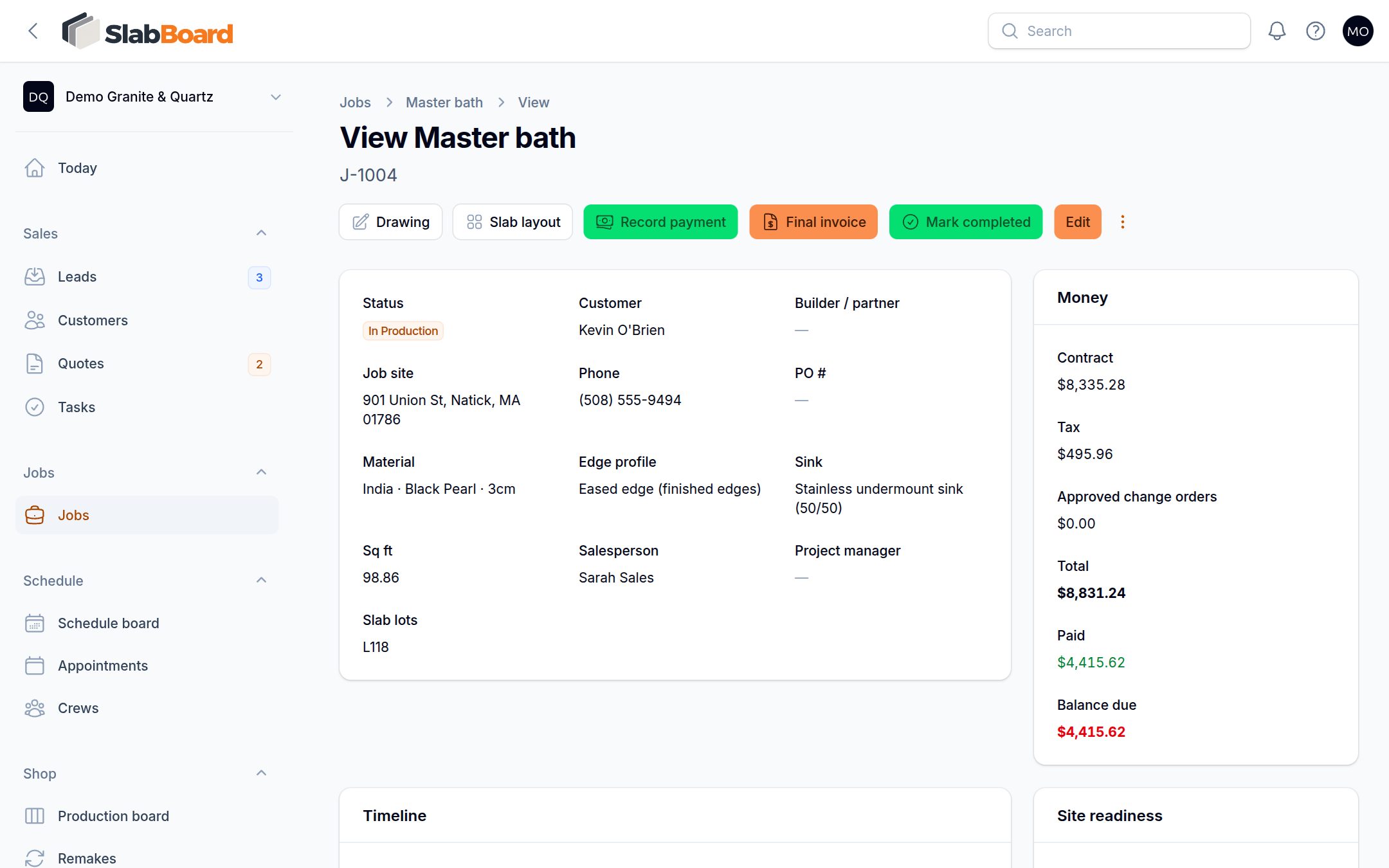
At the top you see the status, customer, site (with a map link), material and specs, Slab lots, money (Contract, approved change orders, Paid, Balance due), the timeline and the site readiness checklist. If something on the checklist is missing, it shows under the job number as "Site not ready".
Buttons at the top:
- Drawing and Slab layout (Pro, once the drawing has pieces). See Draw the countertops.
- Record payment and Final invoice.
- Mark completed: closes the job and, if you set a Google review link, emails the customer a review request.
- … menu: Print work order, Open customer portal, Put on hold, Resume job, Ask for Google review and Cancel job (releases reserved slabs).
Below that are five tabs. Each tab shows its tables one under the other, so scroll down to find, for example, Layout approval under Slabs.
| Tab group | Tabs |
|---|---|
| Job details | Pieces, Schedule, Change orders |
| Slabs & shop | Slabs, Layout approval, Production, Remakes |
| Field | Photos, Field notes, Punch list, Template files |
| Money | Invoices, Payments, Checks |
| Service | Service tickets for this job |
Some tabs need a plan: Slabs and Production need Pro, Layout approval needs Pro.
Important: The work order PDF prints the customer notes and the internal notes together. Don't put anything in Internal notes that the crew shouldn't read.
Put a job on hold
Click … → Put on hold and type the Reason. The customer's job page shows the job is on hold with your reason. Click Resume job to restart it. The job goes back to Installed if it was already installed, In Production if it was templated, and Sold otherwise. Fix the status in Edit if that isn't right.
Related
Still stuck?
Write to us and a real person will answer. [email protected]