
Schedule templates and installs
Book template, install and other visits for your crews, see the week on the schedule board, and move each visit through to complete.
Every visit to a job site (estimate, template, install, delivery, repair) is an appointment. You book it for a crew, the crew sees it in the field app, and completing it moves the job forward: a completed template makes the job Templated, a completed install makes it Installed.
Before you start
- Scheduling is on every plan (feature Scheduling & Crews).
- Owners, Admins, Office and Sales can book and edit appointments. Templaters and installers can view the schedule board.
- Set up your crews first. See Set up crews.
- Times are shown in your company's time zone, set in Company settings.
Book a visit from the job
- Open the job. In the Job details tab, find the Schedule table.
- Click Schedule visit.
- Pick the Type (Template is the default), the Crew, and Starts. Ends fills in two hours later. Change it if needed.
- Add Notes for the crew (gate code, parking, who to ask for).
- Click Create.
If the job's site readiness checklist has missing items, a Site may not be ready warning lists them for Template and Install visits. Call the customer before you send a crew.
You can also book from Schedule → Appointments → New appointment and pick the Job there.
What scheduling does to the job:
- A template booked on a Sold job makes it Template Scheduled.
- An install booked on a job that is Templated, Awaiting Layout Approval, In Production or Ready for Install makes it Install Scheduled.
See the week on the schedule board
Go to Schedule → Schedule board.
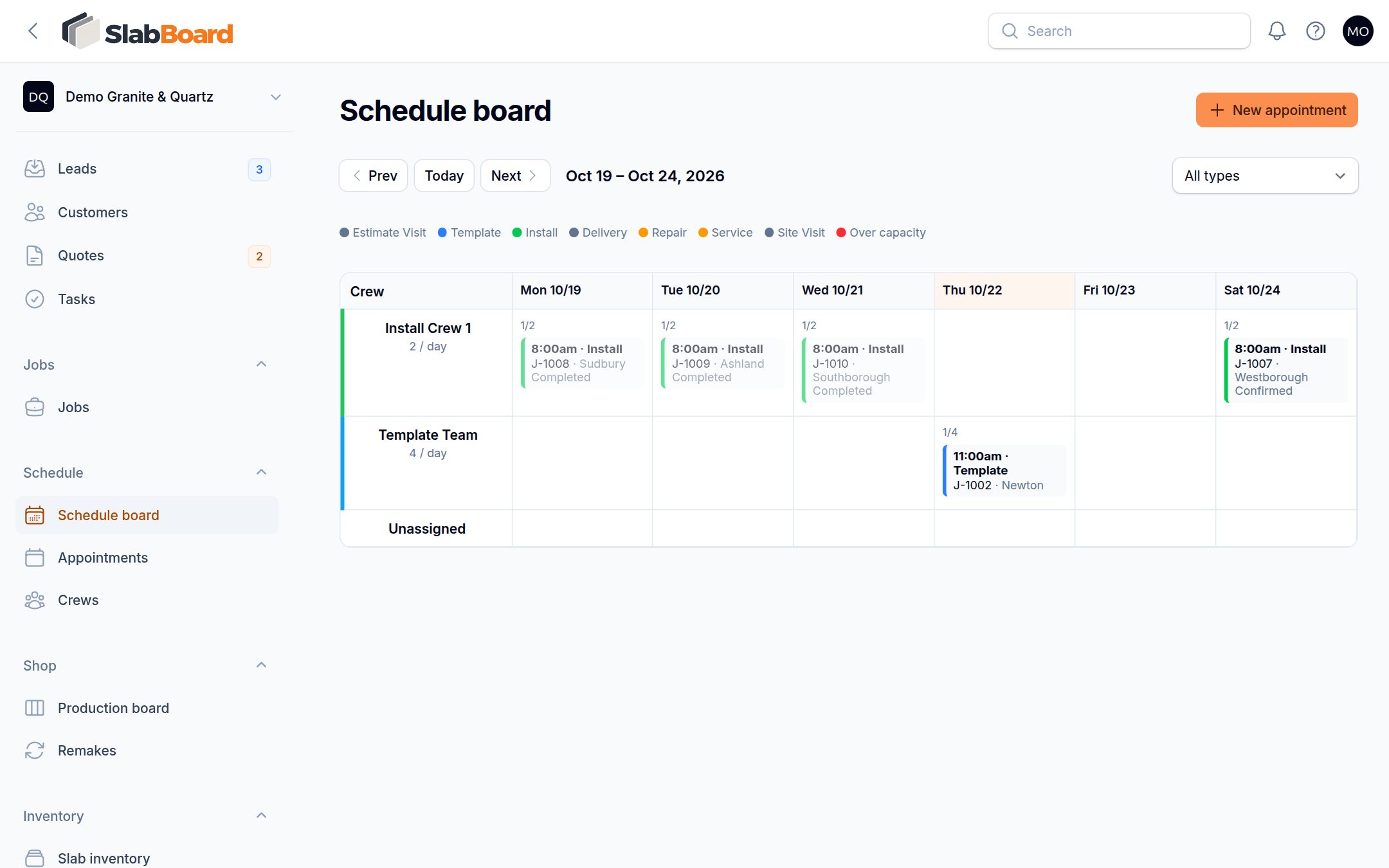
- One row per active crew, plus Unassigned. Columns run Monday to Saturday.
- Each card shows the time, type, job number and city. Click a card to open the job.
- Each cell shows visits / crew capacity (the crew's Jobs per day). A red cell means the crew is over capacity.
- Use Prev, Today and Next to change weeks, and the type list to show only templates or installs.
Good to know: The board has no drag-and-drop and no Sunday column. To move a visit, open it from Schedule → Appointments, click Edit and change Starts and the Crew.
Move a visit through its statuses
In Schedule → Appointments, open the row's … menu (or the Status button on the edit page):
| Action | Result |
|---|---|
| Confirm | Confirmed (customer said yes) |
| Start | In Progress |
| Complete | Completed. Template → job Templated. Install → job Installed. |
| Not ready / no access | No Access / Not Ready. Type what was wrong. It's added to the notes. Reschedule the visit. |
| Send reminder | Emails the customer a reminder |
| Cancel | Cancelled (hidden from the board) |
Crews can also start and finish their visits from the field app on the day of the visit. See Field app on the job.
Find visits
The Appointments list shows When, Type, Job, Customer, Crew and Status, soonest first. The Today and later filter is on by default. Turn it off to see past visits. Today's visits also show on the Today page under Today's schedule.
Related
Still stuck?
Write to us and a real person will answer. [email protected]