
Change orders
Add extra work or a credit to a sold job, get the customer's signature online, and have it billed on the final invoice.
A change order records a change to a sold job and its price: an extra cutout, a bigger island, a different edge, or a credit. The customer approves and signs it online. Approved change orders are added to the job total and to the final invoice, so nothing gets missed at billing.
Before you start
- Change orders are on every plan.
- Only users who can see prices can open the Change orders tab: Owners, Admins, Sales and Office, plus field roles if Show job prices to the field crew is on.
- To send one for signature, the customer needs an email address.
Add a change order
- Open the job. In the Job details tab, scroll to the Change orders table.
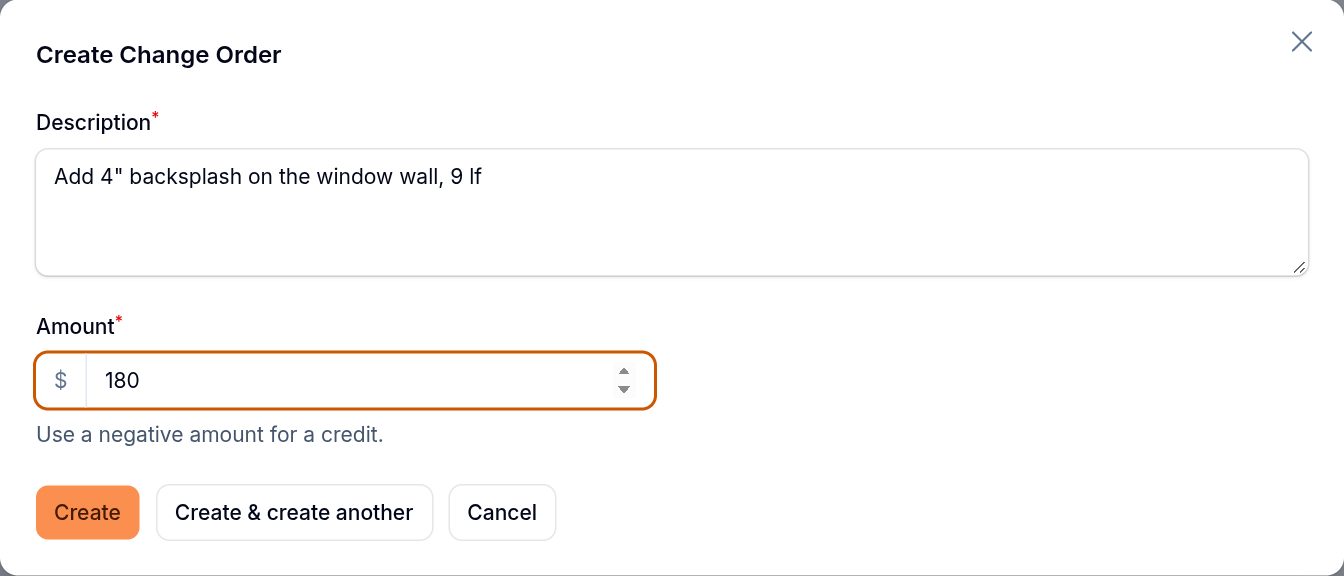
- Click New change order.
- Write the Description the customer will read, for example "Add 4" backsplash on the window wall, 9 lf".
- Enter the Amount. Use a negative amount for a credit, for example -150.
- Click Create. It gets a number like CO-1001 and the status Pending.
Get it signed
- On the change order row, click Send for signature.
- SlabBoard emails the customer: "Change order CO-1001 needs your approval", with a Review & sign button. You see "Change order sent".
- The customer opens the link, signs with a finger or mouse and clicks Approve, or clicks Decline. See What the customer sees on a change order.
Pending change orders also show on the customer's job page under "Change orders awaiting your approval".
If the customer agreed in person or by phone, click Mark approved instead. No signature is saved.
Statuses
| Status | Meaning | Can you edit it? |
|---|---|---|
| Pending | Waiting for the customer | Yes, and you can delete it |
| Approved | Signed online or marked approved | No, and you can't delete it |
| Rejected | The customer clicked Decline | No, but you can delete it |
The Signed by and Approved at columns show who signed and when.
Important: SlabBoard doesn't notify you when the customer signs or declines. Check the Change orders tab.
Good to know: The link doesn't expire. If you edit a pending change order after sending it, the customer's link shows the new description and amount. Tell them it changed.
How approved change orders are billed
- The job page's Money box shows Approved change orders and adds them to the Total and Balance due.
- Final invoice on the job includes every approved change order not invoiced yet, along with the contract and tax.
- Pending and rejected change orders are not billed.
Related
Still stuck?
Write to us and a real person will answer. [email protected]