
Keep track of to-dos with tasks
Create tasks for yourself or a teammate, link them to a job or lead, set a due date and priority, and see what's overdue.
Tasks are the small to-dos that keep jobs moving: call the customer about the sink, order the faucet, follow up on a lead. Each task has an owner and a due date, and the menu shows how many of your tasks are overdue.
Before you start
- Tasks are on every plan, and every role can use them.
- Anyone who can open Tasks can see, edit and complete any task, not only their own.
Add a task
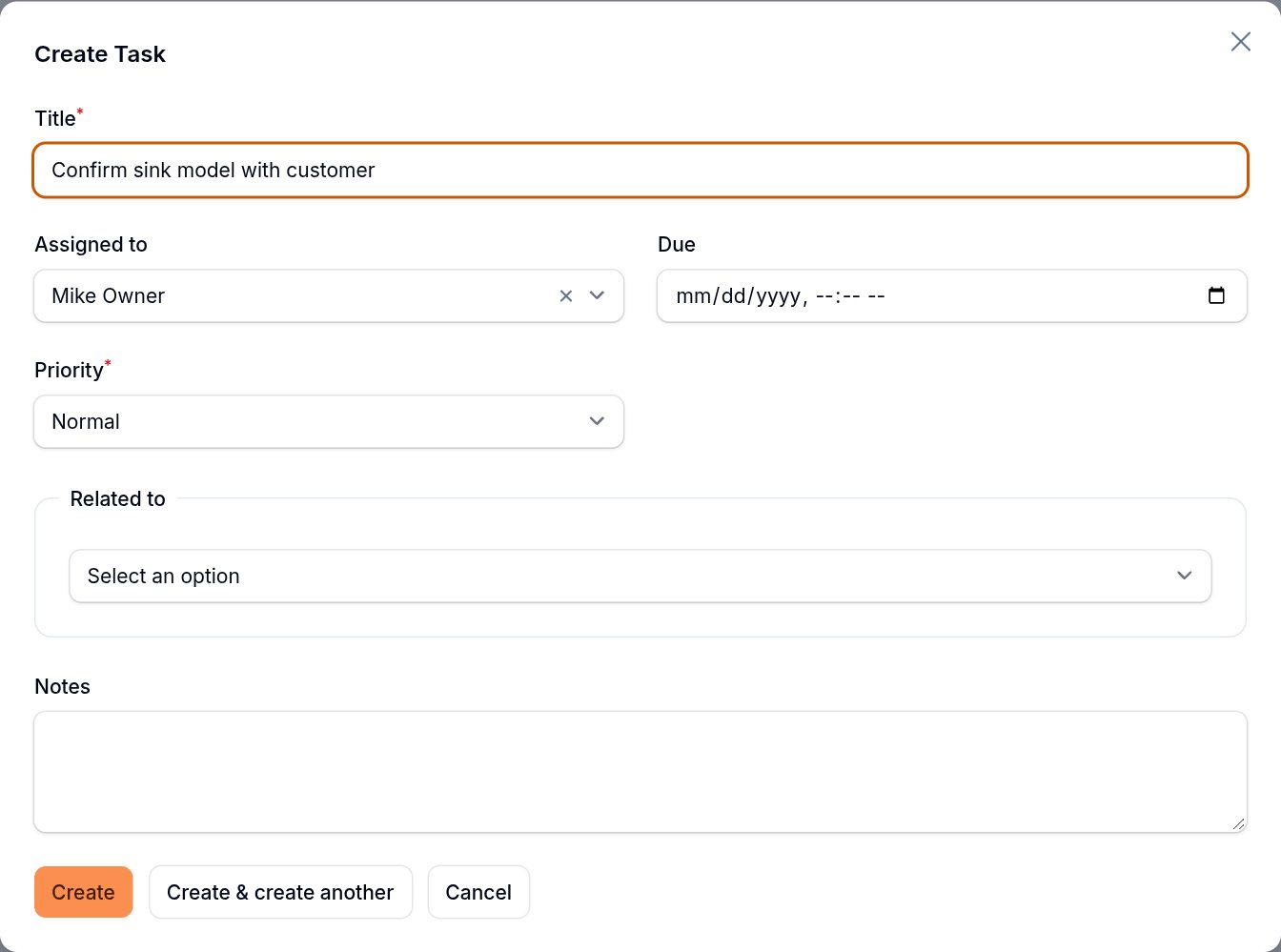
- Go to Sales → Tasks and click New task.
- Type the Title, for example "Confirm sink model with customer".
- Pick who it's Assigned to (you by default), the Due date and time, and the Priority: Low, Normal, High or Urgent.
- Under Related to, pick Job or Lead and choose the record. The task list then links straight to it.
- Add Notes if needed and click Create.
Follow-ups you log from a lead with Log follow-up are tasks too and show up here.
Work your list
The list opens with two filters on: My tasks and Open only. Turn them off to see the whole team's tasks or finished ones.
- Overdue tasks show their due date in red with "Overdue". Use the Overdue filter to see only those.
- Filter by Assigned to or Priority to check a teammate's load.
- The red badge next to Tasks in the menu counts your own overdue open tasks.
Complete or reopen a task
- Click Complete on the row. The Done column shows when.
- To finish several at once, select them and click Mark complete.
- Click Reopen if it wasn't really done.
Good to know: SlabBoard doesn't send emails or alerts for tasks. Your teammates see their tasks in the list and in the menu badge, so ask them to check Tasks every day.
Good to know: Tasks linked to a job don't show on the job page. Find them in Sales → Tasks. On a lead, they show under Tasks & follow-ups.
Related
Still stuck?
Write to us and a real person will answer. [email protected]