
Track leads from first call to won job
Log new leads, record first contact, schedule follow-ups and turn a lead into a quote, so no estimate request slips through the cracks.
A lead is anyone who asked for a price but isn't a customer with a quote yet: a phone call, a showroom walk-in, a web form. Sales → Leads keeps them in one list so you can see who is waiting for a call back and how fast your team responds.
Before you start
- Owners, Admins, Sales and Office users can use Leads. Templaters, installers and shop users can't see them.
- Leads need the Leads & CRM feature, which is on every plan.
Add a lead
- Go to Sales → Leads and click New lead.
- Fill in Name and at least a phone or email. If this person already buys from you, pick them in Existing customer. Otherwise leave it empty.
- Add the Job site address and the Project details you know: Project type, Material interest, Est. sq ft, Est. value and the Message.
- Under Pipeline, choose the Source (where the lead came from), the Salesperson and the Next follow-up date.
- Click Create. The lead gets a number like L-1016 and the status New.
Leads from your website form arrive here on their own. See Add the estimate form to your website.
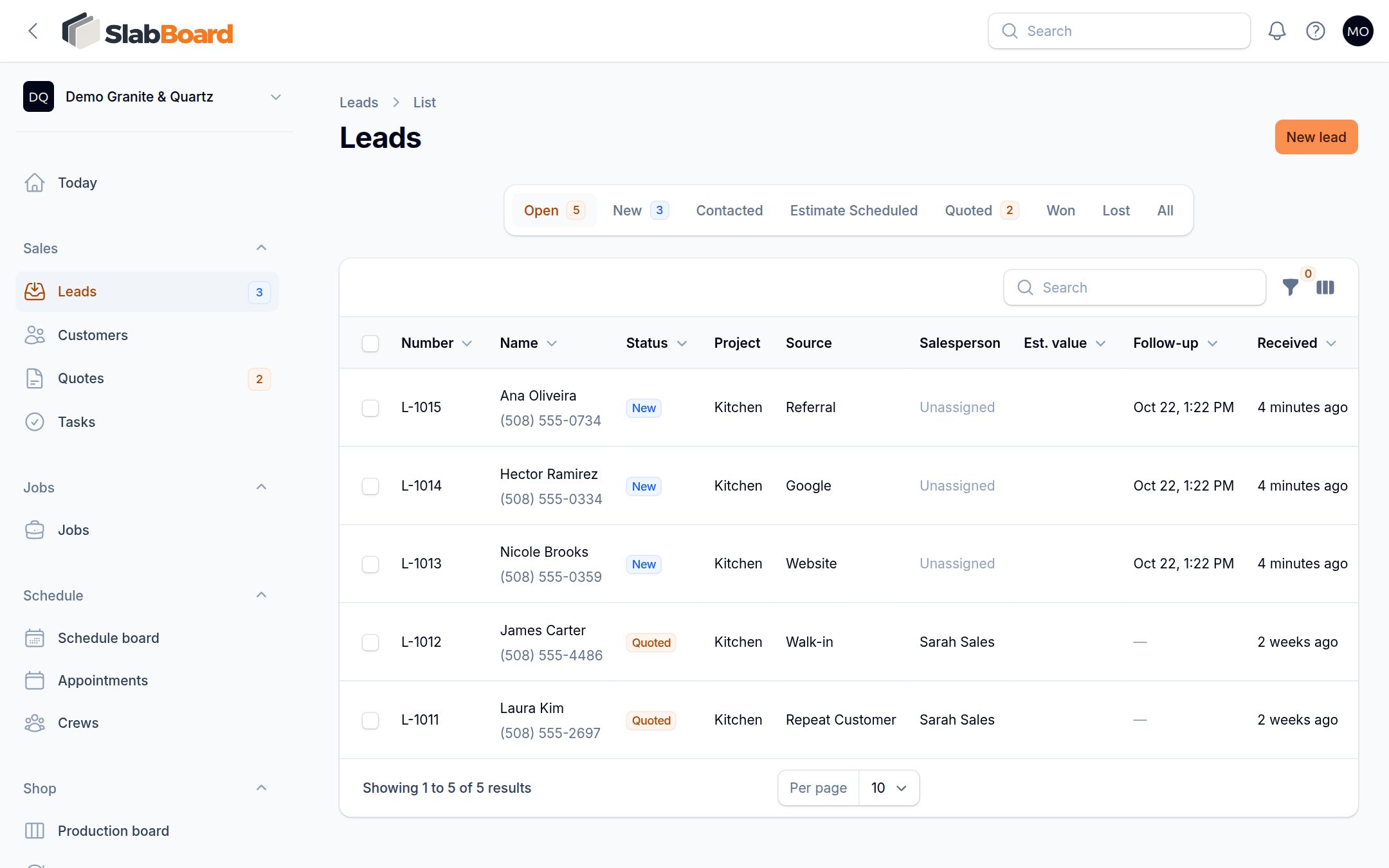
Work the list
The Open tab shows every lead that isn't Won or Lost. The menu badge counts leads still in New, the ones nobody has called yet. Use the Overdue follow-up filter to see open leads whose follow-up date has passed. Those show in red in the Follow-up column.
| Status | How it gets set |
|---|---|
| New | When the lead is created |
| Contacted | Click Mark contacted |
| Estimate Scheduled | By hand, in Edit |
| Quoted | By hand, in Edit |
| Won | Automatically, when a quote linked to the lead is accepted |
| Lost | Click Mark lost |
Good to know: Creating or sending a quote does not move the lead to Quoted. Change it by hand if you use that status.
Record the first call
Open the lead and click Mark contacted right after you reach the customer. SlabBoard stamps the time and shows Speed to lead: the time between the lead arriving and your first contact. It shows green up to 15 minutes, amber up to an hour and red after that.
Important: Changing the status to Contacted in Edit does not record the contact time. Speed to lead keeps saying "Waiting". Always use Mark contacted.
Schedule a follow-up
- Open the lead and click Log follow-up.
- Check the Title, pick the Due date (it defaults to two days from now at 9:00), Assigned to and Priority.
- Save. A task is added under Tasks & follow-ups and the lead's Next follow-up updates to match.
Turn the lead into a quote
Click Create quote on the lead. SlabBoard looks for a matching customer: first the one linked to the lead, then the same email, then the same phone number. If none matches, it creates a new Homeowner customer from the lead's details. Then the New quote form opens with the customer and lead filled in. See Create a quote.
Close a lead as lost
Click Mark lost (in the … menu on the lead page) and pick a Reason, such as Price too high or No response. The follow-up date is cleared.
Manage lead sources
Owners, Admins and Office users can edit the list under Settings → Lead Sources. Every shop starts with common sources like Google, Website, Referral and Houzz. Turn off Active to hide a source from the lead form without losing it on older leads. Sales users can't open this page, but they can add a new source right from the Source field on a lead.
Important: Keep a source named exactly Website. Leads from your web form are tagged with it. If you rename or delete it, web leads arrive with no source.
Related
Still stuck?
Write to us and a real person will answer. [email protected]