
Create a quote
Build a countertop quote with pieces, edges, cutouts and several material options, and understand how SlabBoard adds up waste, slabs, tax and discounts.
A quote lists the pieces you'll fabricate, the extras (edges, cutouts, sinks, services) and one or more material options for the customer to choose from. SlabBoard prices every option on the same pieces, so the customer can compare, say, a quartz and a granite side by side.
Before you start
- Owners, Admins, Sales and Office users can create quotes.
- Set up your Materials & colors and Price book first. Only Owners, Admins and Office users can change price-book prices. See Set up your price book and materials.
- Your default tax rate, waste, deposit and validity come from company settings. See Company settings.
Create the quote
- Go to Sales → Quotes and click New quote. Or click Create quote on a lead to start with the customer filled in.
- Under Customer & job site, pick the Customer (or click + to add one). The job-site address fills in from the customer. Add a Title like "Kitchen + 2 baths" and check the Lead and Salesperson.
- Under Terms, check Valid until, Sales tax, Deposit, Waste and Discount.
- Under Pieces & measurements, add each countertop and backsplash piece: Area, Name, Length (in), Depth (in) and Qty. Turn on Backsplash for splash pieces. Click Add piece for more.
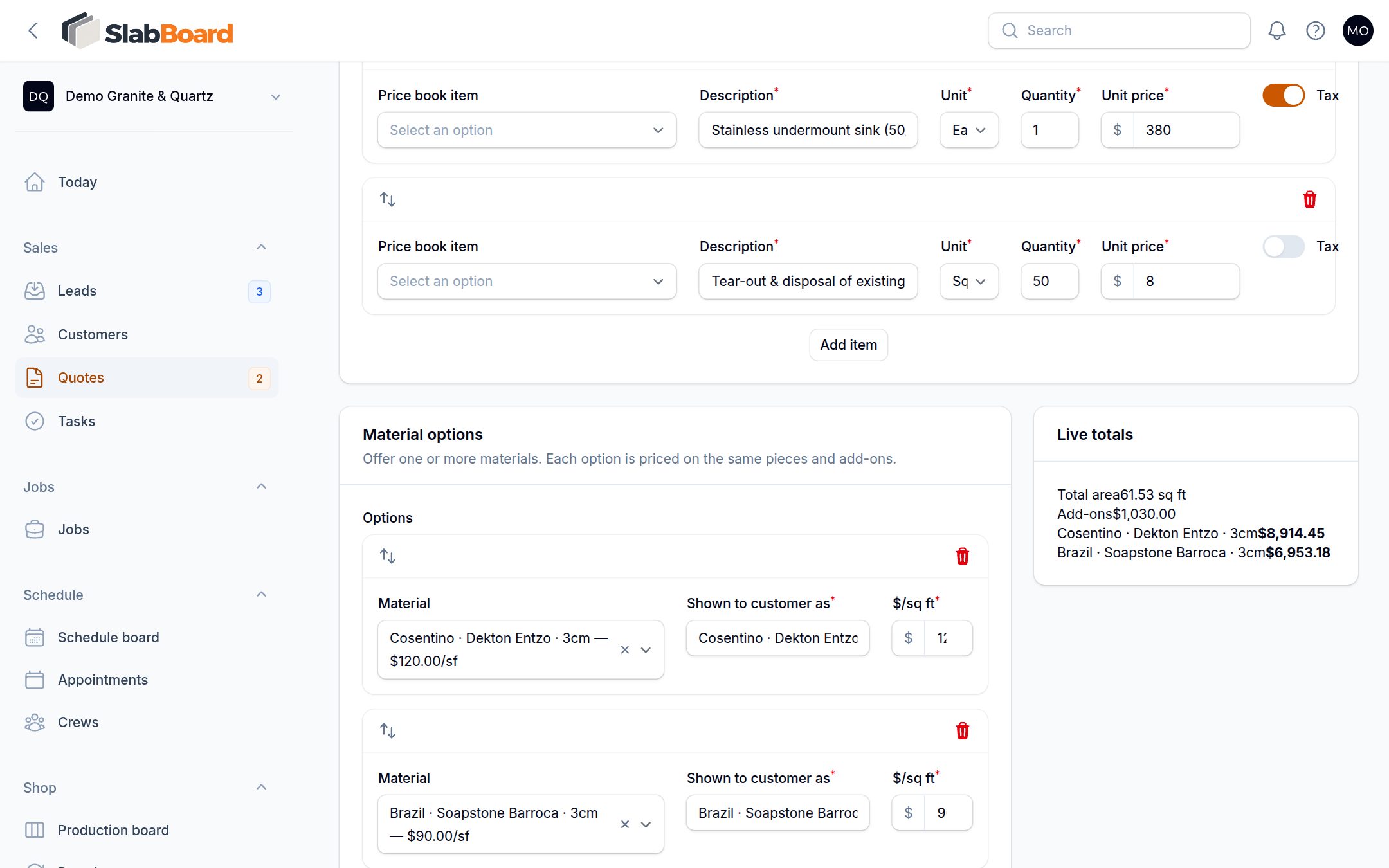
- Under Edges, cutouts, sinks & services, click Add item and pick a Price book item. The description, unit, price and tax setting fill in. Adjust the Quantity.
- Under Material options, pick a Material. Shown to customer as and $/sq ft fill in, and you can change both. Click Add material option to offer more choices.
- Add Notes to customer if you like (they appear on the customer page and PDF). Internal notes stay inside the shop.
- Click Create. SlabBoard prices the quote and opens it as a Draft.
Tip: Instead of typing pieces, click Drawing on the quote page and draw the countertops. Saving the drawing fills in pieces, edges, splash, cutouts and faucet holes for you. See Draw the job.
How the price is worked out
Square feet. Each piece is Length × Depth ÷ 144 × Qty. A 120" × 25.5" run is 21.25 sq ft. Backsplash pieces count too. If you type a Sq ft override, it replaces that piece's whole total (it is not multiplied by Qty).
Material, priced by the square foot. Total sq ft, plus the Waste %, times the option's $/sq ft. Example: 52 sq ft with 10% waste at $65/sq ft = 57.2 × $65 = $3,718.
Material, priced by the slab. If the material has a Price / slab, SlabBoard charges whole slabs instead: number of slabs × price per slab, and waste is ignored (the leftover is already in the whole slab). The slab count comes from your saved slab layout on that material. Without a layout, SlabBoard estimates it from the material's slab size. Example: 2 slabs × $1,800 = $3,600.
Add-ons. Quantity × unit price for each item, added up.
Discount. The Discount amount comes off every option. A $200 discount takes $200 off each option, not $200 split between them.
Tax. Sales tax % applies to the material plus the add-ons marked Tax, minus the discount. Items with Tax off (services like plumbing by default) aren't taxed. A customer marked Tax exempt pays no tax on any option.
Deposit. Deposit % of the option's total, tax included.
| Example (one option) | Amount |
|---|---|
| Material: 52 sq ft + 10% waste × $65 | $3,718.00 |
| Taxable add-ons (edges, sink cutout, faucet hole) | $1,025.00 |
| Non-taxable add-on (plumbing) | $250.00 |
| Discount | −$200.00 |
| Tax 6.25% on $4,543 | $283.94 |
| Total | $5,076.94 |
| Deposit 50% | $2,538.47 |
Good to know: The Live totals box on the form is a quick preview. It leaves out waste, per-slab pricing and tax exemption. The quote page shows the real totals after you save.
Good to know: An option's $/sq ft is copied when you pick the material, so later price changes don't touch the quote. A Price / slab is read fresh every time the quote is recalculated (save, send, accept).
Edit or revise a quote
Click Edit on the quote page. Saving reprices it. Accepted quotes can't be edited. For a new version, use … → Duplicate as new revision: a new Draft with a new number and fresh validity, with the pieces, add-ons, options and drawing (not the slab layout).
Quote statuses
| Status | Meaning |
|---|---|
| Draft | Not sent yet |
| Sent | Emailed to the customer |
| Viewed | The customer opened the link |
| Accepted | Approved, and a job was created |
| Declined | The customer or the shop declined it |
The Sales → Quotes badge counts quotes that are Sent or Viewed.
Good to know: Nothing sets a quote to Expired today: not the calendar, and there's no button for it. Past its Valid until date, a quote keeps its status (Sent or Viewed), shows the date in red and can no longer be approved online. To extend it, edit Valid until.
Related
Still stuck?
Write to us and a real person will answer. [email protected]