
Set up your price book and materials
Set your prices for edges, cutouts, sinks and services, and add the stone colors you sell with their price and cost per sq ft.
Quotes are built from two lists. The price book holds everything that isn't stone: edges, cutouts, sinks, faucet holes, backsplash, services and fees. Materials & colors holds the stone you sell, with a price per sq ft. Get both right before you quote, and every quote and drawing prices itself.
Before you start
- Price book: Owner, Admin and Office can edit it. Sales users can't see it.
- Materials & colors: Owner, Admin, Office and Sales can edit it.
Review the starter price book
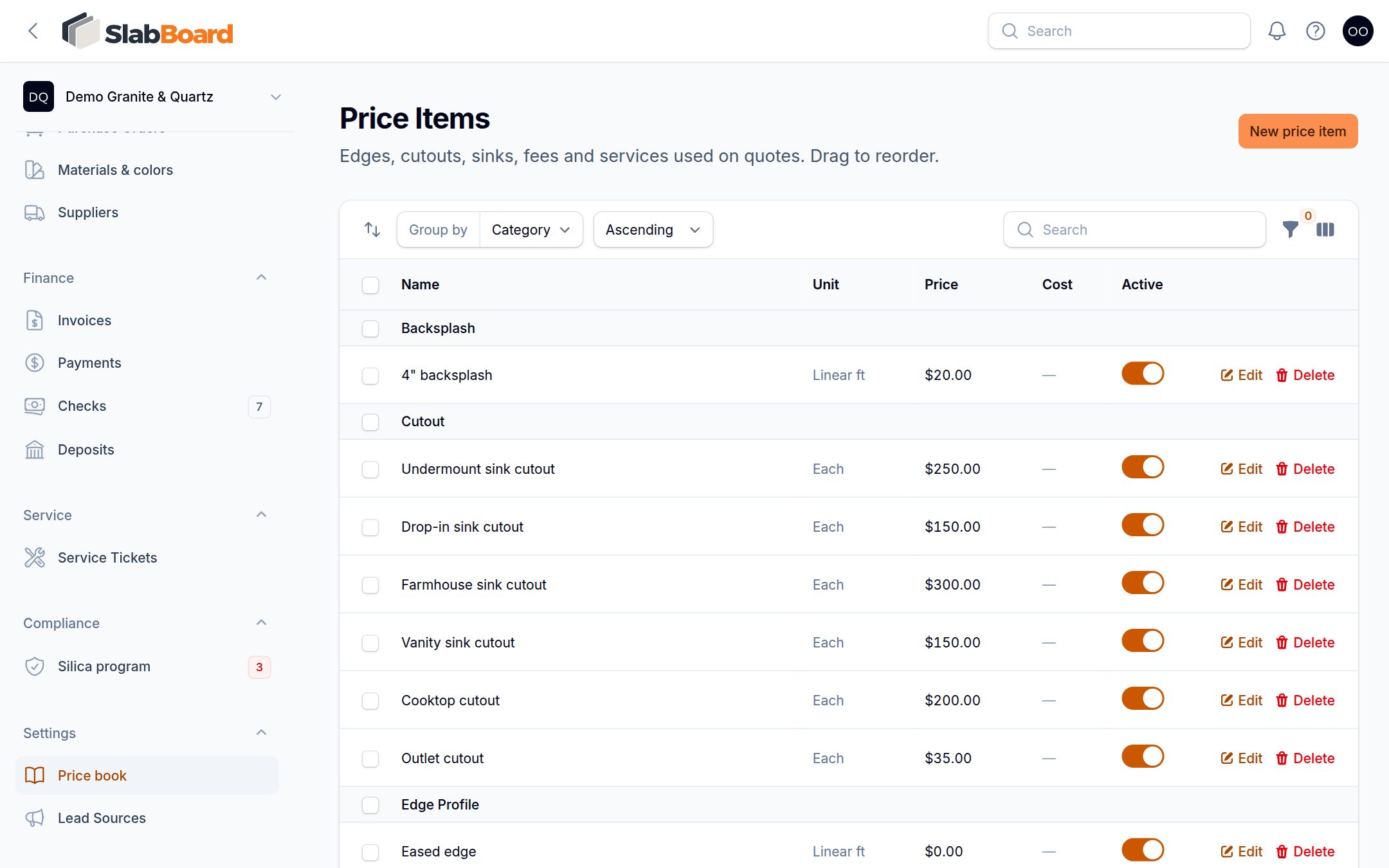
Every new shop starts with 21 common items at sample prices. Change them to your prices before you quote.
| Category | Starter items |
|---|---|
| Edge Profile (per linear ft) | Eased, Bevel, Half bullnose, Full bullnose, Ogee, Mitered edge (apron) |
| Cutout (each) | Undermount sink, Drop-in sink, Farmhouse sink, Vanity sink, Cooktop, Outlet |
| Faucet Hole (each) | Faucet hole |
| Sink (each) | Two stainless undermount sinks, Porcelain vanity sink |
| Backsplash (per linear ft) | 4" backsplash |
| Service | Tear-out & disposal, Plumbing disconnect / reconnect, Sealing |
| Fee | Trip / small job fee |
- Go to Settings → Price book. Items are grouped by category.
- Click Edit on an item, change the Price, and save.
- Turn off the Active switch on anything you don't sell. Inactive items stay on old quotes but can't be picked on new ones.
Add a price item
- In Settings → Price book, click New price item.
- Pick a Category and type a Name, for example "Ogee edge" or "Undermount sink cutout".
- Pick a Unit: Each, Linear ft, Sq ft or Flat.
- Enter the Price. Cost is optional; it's used for margin reports.
- Leave Taxable on unless the item isn't taxed in your state (the starter services are non-taxable).
- Click Create.
Put items in the right order
Drag items up and down to reorder them. The order matters for the drawing tool, which prices some things automatically:
- The default edge is the first active Edge Profile item priced per linear ft whose name doesn't contain "miter".
- Waterfall joints use the first Edge Profile item whose name contains "miter".
- Splash is priced with the first Backsplash item.
- Faucet holes use the first Faucet Hole item.
Tip: Keep your most common edge (usually Eased) at the top of the Edge Profile group.
Good to know: Changing a price doesn't change quotes you already made. A quote picks up new prices only for items rebuilt when its drawing is saved again.
Add a material
New shops start with no materials.
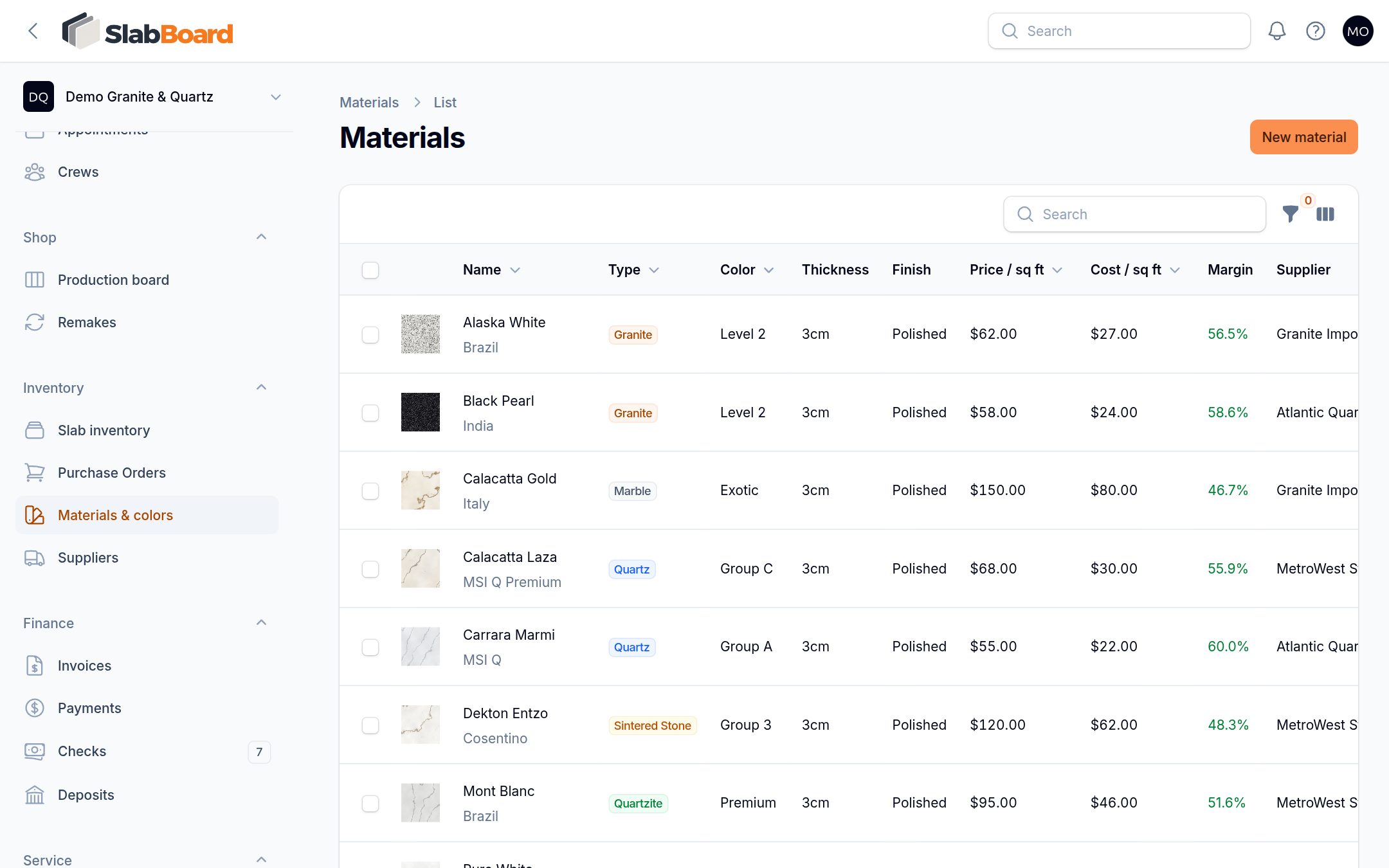
- Go to Inventory → Materials & colors and click New material.
- Enter the Color name (for example "Calacatta Laza"), Brand, Type (Granite, Quartz, Quartzite, Marble and more), Thickness and Finish.
- Pick the Supplier, or add a new one right from the list.
- Enter Price / sq ft. This is what quotes charge.
- Optional: enter Cost / sq ft (what you pay your supplier). SlabBoard shows your Margin as you type.
- Optional: enter Price / slab if you sell this color by the whole slab. Quotes then charge whole slabs instead of sq ft.
- Optional: set a slab Length and Width if this color's slabs differ from your company default, and add a Photo. The photo is used as the slab picture in the slab layout.
- Click Create.
Change prices on many materials at once
When a supplier raises prices, update them in one step.
- In Inventory → Materials & colors, check the boxes next to the materials.
- Open the bulk actions menu and pick Adjust price by %.
- Enter the Change (for example
10for +10%, or-5to lower prices 5%). - Under Apply to, pick Selling price, Cost or Both price and cost.
Important: Adjust price by % only changes the per-sq-ft price and cost. Update Price / slab by hand.
The Margin column turns red under 20%, amber under 35% and green at 35% or more, so you can spot colors that need a price change.
Related
Still stuck?
Write to us and a real person will answer. [email protected]