
Draw the countertops
Draw runs, L and U shapes, islands and freeform pieces to scale, with edges, splashes, cutouts and seams, so the quote prices itself.
The drawing editor is where you draw the countertops to scale. On a quote, saving the drawing builds the pieces and the edge, splash, cutout and sink lines from your price book, then reprices the quote. On a job, it rebuilds the pieces the shop cuts. The drawing is also the starting point for the slab layout and the 3D preview.
Before you start
- The drawing editor is on every plan.
- On quotes, Owners, Admins, Sales and Office users can draw. On jobs, every role that can open Jobs can draw.
- Set up your edge, cutout, sink, backsplash and faucet hole items in the price book first. The drawing picks prices from there.
Open the drawing
- Open the quote (Sales → Quotes) or the job (Jobs → Jobs).
- Click Drawing at the top of the page.
When a quote becomes a job, its drawing is copied to the job. After templating, open the job's drawing and correct it to the real measurements.
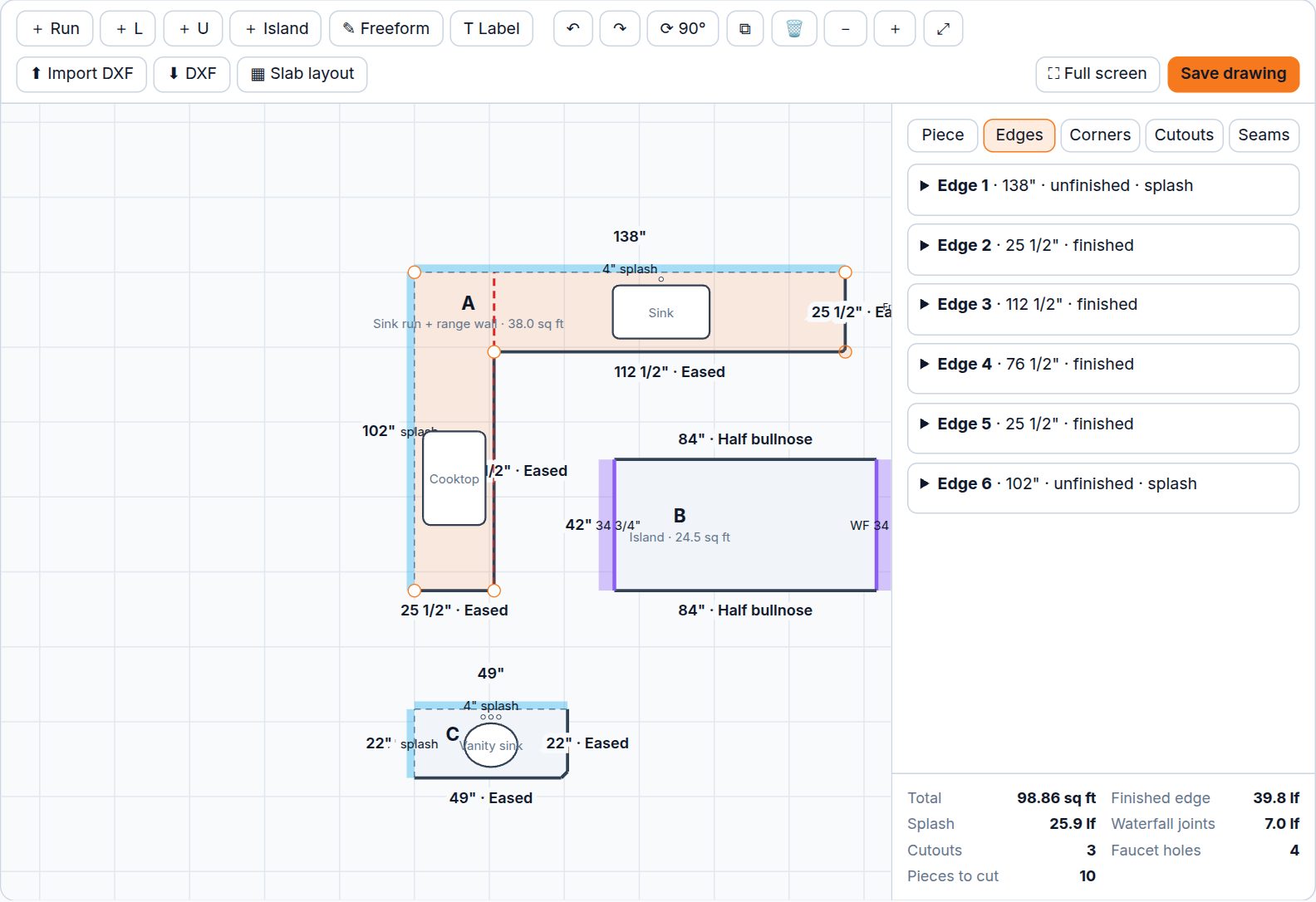
Add pieces
- Click a shape in the toolbar: + Run (straight run, 96"), + L, + U or + Island (84" × 42", all edges finished).
- For any other shape, click ✎ Freeform, then click each corner. Click the first point again (or press Enter) to close the shape. Lines lock to 0°, 45° and 90°. Hold Shift for any angle.
- To type an exact size, click a dimension on the drawing, type the length and press Enter. The next edge opens, so you can go around the piece.
- Drag a piece to move it. Drag a corner handle to reshape it.
Pieces get letters (A, B, C…). New runs use the Default depth in the side panel (25 1/2" unless you change it). You can type inches as 25.5, 25 1/2 or 25-1/2. Feet are not accepted.
Set edges, splashes and waterfalls
Click a piece, then open the Edges tab. Each edge has:
- Finish: Finished, Unfinished (wall) or Appliance (flat polish). Only finished edges are charged as edge profile.
- Edge profile: pick one from your price book, or leave Default.
- Splash height and Waterfall height.
- Curve depth, Full radius, Bump out / Bump in, and Add a corner in the middle for odd walls.
Shape corners and add cutouts
- Corners tab: make a corner Radius or Clip (chamfer), or click Cut notch.
- Cutouts tab: click + Add cutout, pick the Cutout (price book) item and the Sink sold with it, then set the size, Faucet holes and position. Picking an undermount, farmhouse, vanity or cooktop item fills in a typical size.
Add seams
Open the Seams tab and click + Seam across (│) or + Seam along (─). Seams split a piece into parts (A1, A2…) for the slab layout. See Match the veining and place seams.
Save the drawing
Click Save drawing (or press Ctrl+S). The Summary box shows total sq ft, finished edge, splash and waterfall feet, cutouts, faucet holes and pieces to cut.
- On a quote, every piece and add-on that came from the drawing is deleted and rebuilt, then the quote is repriced. Lines you typed by hand in the quote form stay.
- On a job, the job's pieces are rebuilt: one per part after seams, with labels.
Important: Don't edit drawing-made pieces or add-ons in the quote form. They are replaced the next time you save the drawing.
Good to know: Cutouts are not subtracted from the sq ft. If you leave the page with unsaved changes, your browser asks before leaving.
Keyboard, mouse and touch
| Action | How |
|---|---|
| Save | Ctrl+S (Cmd+S on Mac) |
| Undo / redo | Ctrl+Z / Ctrl+Y or Ctrl+Shift+Z |
| Rotate the selected piece 90° | R |
| Duplicate the selected piece | D |
| Delete the selected piece | Delete or Backspace (asks you to confirm) |
| Fit the drawing to the screen | F |
| Leave a tool or deselect | Esc |
| Close a freeform shape | Enter, or click the first point |
| Any angle in freeform | Hold Shift |
| Type a length | Click the dimension, type, Enter (Tab also moves to the next edge, Shift+Enter saves without moving, Esc cancels) |
| Zoom | Mouse wheel, or - / + |
| Pan | Drag an empty spot, or drag with the right mouse button |
| Phone or tablet | One finger drags pieces, pinch to zoom, two fingers to pan |
Click ⛶ Full screen for more room. On a phone it covers the page. Click ✕ Exit full screen to go back.
Related
Still stuck?
Write to us and a real person will answer. [email protected]