
Suppliers and purchase orders
Keep your stone suppliers in one list, order slabs with a purchase order and receive them straight into slab inventory with tags and lots.
Keep every distributor you buy from in one list, then order slabs with purchase orders (POs). When the slabs arrive, receiving the PO adds each one to your slab inventory with its own tag, lot and rack.
Before you start
- Suppliers work on every plan. Owners, Admins, Office and Sales users can open them.
- Purchase orders need the Pro plan (Slab Inventory & Purchasing). Only Owners, Admins and Office users can open them.
- Add your materials with their Cost / sq ft first, in Inventory → Materials & colors. POs use it to suggest unit costs.
Add a supplier
- Go to Inventory → Suppliers.
- Click New supplier.
- Fill in Supplier / distributor. Add the Sales rep, Phone, Email, Website, Our account # and address if you want.
- Click Create.
The list shows how many materials each supplier has. Turn off Active for suppliers you no longer use.
Create a purchase order
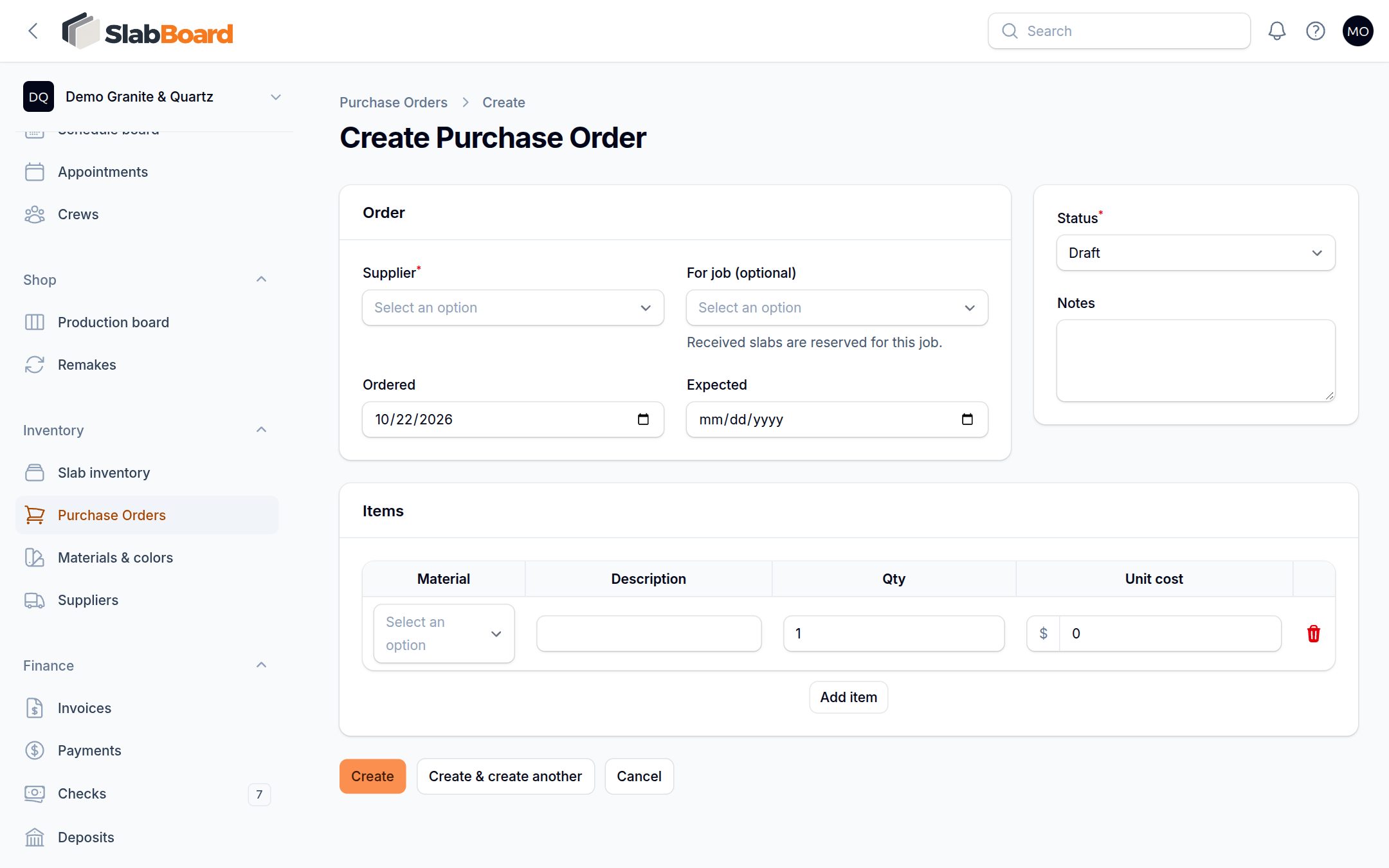
- Go to Inventory → Purchase orders and click New purchase order.
- Pick the Supplier.
- If the slabs are for one job, pick it in For job (optional). Received slabs will be reserved for that job. Leave it empty for stock.
- Set Ordered and Expected dates.
- Under Items, for each line:
- Pick the Material. The Description and Unit cost fill in (default slab size × the material's cost per sq ft).
- Set Qty (number of slabs) and check the Unit cost.
- Click Add item for more lines.
- Leave Status on Draft, or set Ordered once you've sent it.
- Click Create. SlabBoard numbers it PO-1, PO-2 and so on.
Good to know: SlabBoard doesn't email or print the PO for your supplier. Send the order the way you always do, and use the PO here to track it.
PO statuses
| Status | When |
|---|---|
| Draft | You're still building it. |
| Ordered | Sent to the supplier. Set it yourself. |
| Partially Received | Some slabs are in. Set by receiving. |
| Received | Everything is in. Set by receiving. |
| Cancelled | Set it yourself. |
Receive slabs
- In the PO list, click Receive on the order. It shows for Draft, Ordered and Partially Received orders.
- For each open line, set:
- Receive: how many came in. It starts at everything still open.
- Lot #, Length (in), Width (in) and Yard location.
- Confirm. You see "N slabs added to inventory".
Each slab gets its own tag (S-####), the material, supplier, lot, size, rack and the unit cost. Slabs are Reserved for the PO's job, or Available if there's no job. The PO moves to Partially Received or Received.
Important: Lines without a Material (sinks, adhesive, supplies) count as received but don't create slabs. Only lines with a material add slabs to inventory.
Tip: All slabs received on one line share one lot, size and rack. If a delivery mixes lots, receive part of the line, then click Receive again for the rest.
You can't receive more than is still open on a line.
Find orders
The list shows PO #, supplier, job (Stock when none), status, received vs ordered, dates and total. Filter by Status or Supplier.
Related
Still stuck?
Write to us and a real person will answer. [email protected]