
Track jobs on the production board
See every job in the shop at its current step, move it forward with Start and Done, and spot jobs that install soon but aren't ready.
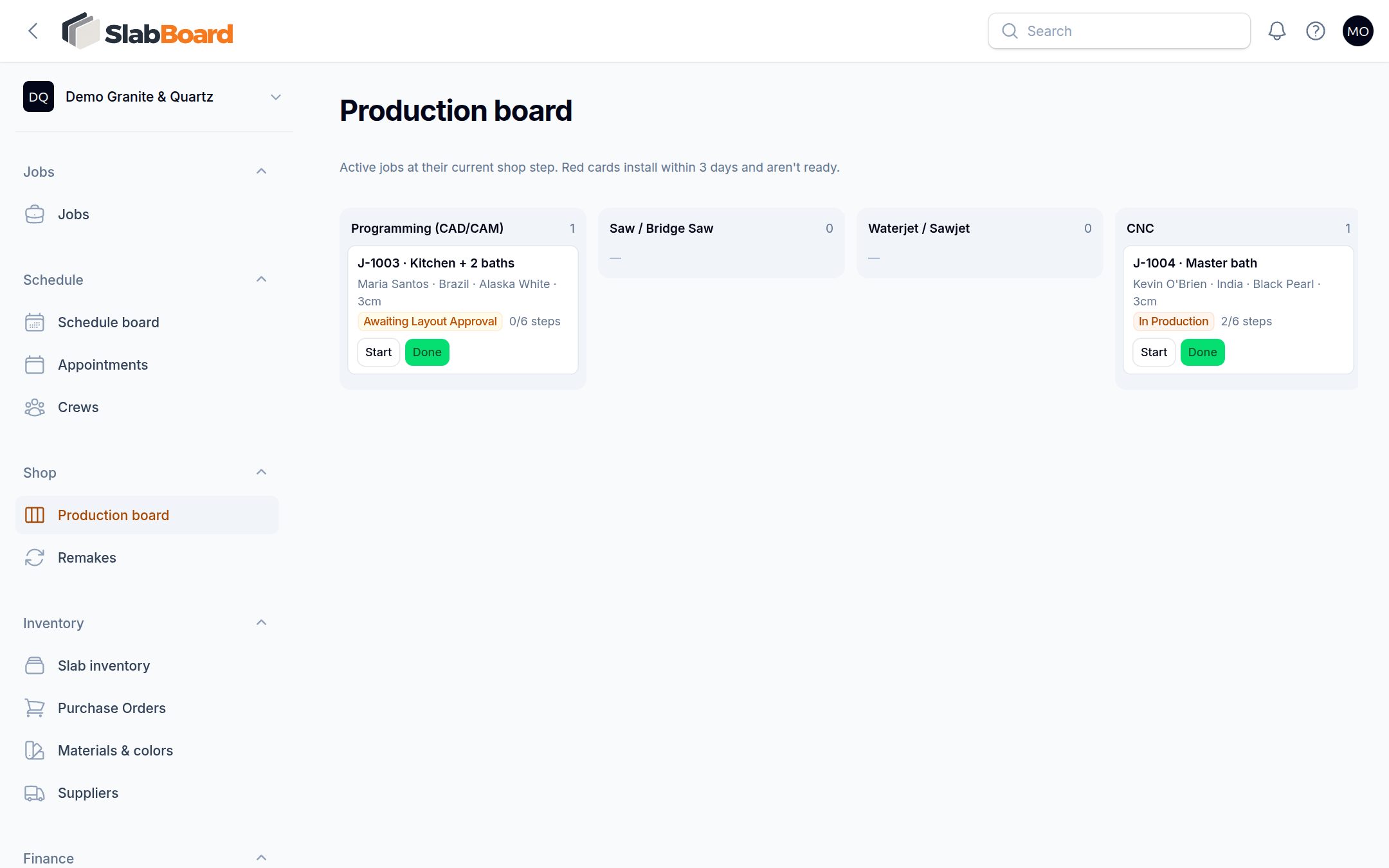
The production board shows every active job at its current shop step, from programming to staged. Your shop crew moves jobs forward with two buttons, and the office sees at a glance which jobs are late for their install.
Before you start
- The board needs the Pro plan (Shop Production Tracking).
- Owners, Admins, Office and Fabricator users can open it. Sales, Templater and Installer users can't.
- Open it from Shop → Production board.
Which jobs show up
Jobs appear once they are templated and leave when they are installed. That means jobs with these statuses:
| On the board | Not on the board |
|---|---|
| Templated, Awaiting Layout Approval, In Production, Ready for Install, Install Scheduled | Sold, Template Scheduled, Installed, Completed, On Hold, Cancelled |
How the columns work
Each column is one shop step:
- Programming (CAD/CAM)
- Saw / Bridge Saw
- Waterjet / Sawjet
- CNC
- Edging
- Polish
- Quality Check
- Ready / Staged
A job sits in the column of its first step that isn't done or skipped. Two extra columns appear only when needed: No routing yet (the job has no steps) and All steps done.
Every new job gets six default steps: Programming, Saw, CNC, Polish, Quality Check and Ready. So Waterjet and Edging stay empty unless you add those steps to a job.
Inside a column, urgent jobs come first, then jobs by install date, soonest first.
Read a card
Each card shows:
- Job number and name (click to open the job).
- Customer and material.
- Job status and step progress, for example 2/6 steps.
- The next install date.
- Who is assigned to the current step.
A red card means the install is within 3 days and the job isn't ready yet. Deal with those first.
Move a job forward
- Find the job's card.
- Click Start when work on the current step begins. The card shows In progress.
- Click Done when the step is finished. The card moves to the next step's column.
You can click Done without clicking Start first.
Important: The board has no drag-and-drop. Use Start and Done. The board doesn't refresh by itself either: reload the page to see what others changed.
What changes automatically
- When the first step starts, a Templated or Awaiting Layout Approval job becomes In Production, and its reserved slabs become In Production.
- When every step is done or skipped, the job becomes Ready for Install. If an install is already booked, it stays Install Scheduled and the card moves to All steps done.
- Booking an install on a job in the shop moves it to Install Scheduled. It stays on the board.
Good to know: A job that is still Awaiting Layout Approval shows up in Programming. Starting a step moves it to In Production even if the customer hasn't approved the layout. Check the approval first.
Change a job's steps
Skip, reset, assign or reorder steps on the job itself, not on the board.
- Open the job and go to Slabs & shop → Production.
- Use the row buttons:
- Start and Done, same as the board.
- Skip: the step counts as complete.
- Reset to pending: clears the start and done times. It doesn't move the job status back.
- Assign: pick a team member.
- To add a step, click Add step, pick the Step, an optional Assigned to and Notes. It goes at the end.
- Drag rows to change the order. The order decides the board columns.
If a job shows in No routing yet, click Add default steps on its card or on the Production tab.
Tip: The board tracks steps for the whole job, not single pieces. For piece-by-piece tracking, print piece labels. See Work orders, piece labels and DXF files.
Related
Still stuck?
Write to us and a real person will answer. [email protected]