
Send a quote for signature
Email a quote to your customer so they can compare options, approve and sign online, and follow it from Sent to Viewed to Accepted.
When the quote is ready, send it from SlabBoard. Your customer gets an email with a link to their own quote page, where they pick a material, sign with a finger or mouse and approve. No printing, scanning or app to install.
Before you start
- The quote needs a customer email address, or you can type one when you send.
- Check the quote page totals first. They are the figures your customer will see.
- Online signing works on every plan.
Send the quote
- Open the quote (Sales → Quotes, then click it).
- Click Send to customer.
- Check the Email. It defaults to the customer's email.
- Edit the Message if you like. The default reads: "Thank you for the opportunity! Your countertop quote is ready — you can review options, approve and sign online."
- Click Submit. You'll see "Quote sent".
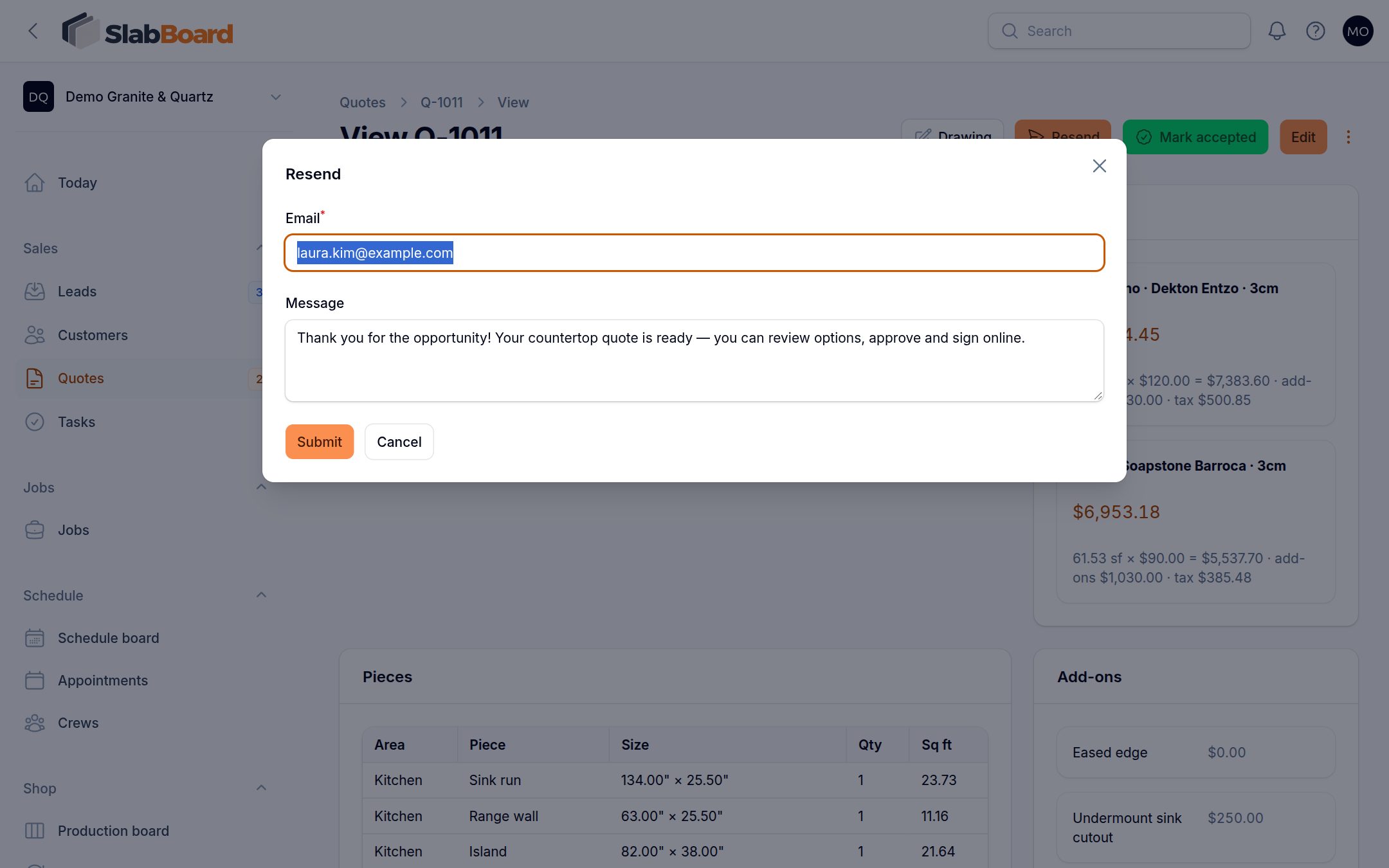
SlabBoard reprices the quote, emails it and moves it from Draft to Sent. The Sent at date appears on the quote page.
What the customer receives
- Subject: "Your countertop quote Q-1011 from {your shop name}".
- Your message, each material option with its total, and "Pricing is valid until {date}".
- A Review & approve your quote button that opens their quote page.
- Your shop name and phone. Replies go to your company email.
To see exactly what they'll see, click … → Open customer view. See What your customer sees on the quote link.
Good to know: Quotes go out by email only. There is no text-message option for quotes yet. If a customer prefers texting, open the customer view, copy the link and text it yourself.
Important: Opening the customer view of a Sent quote marks it Viewed, even when it's you. Open it before sending, or keep this in mind when reading statuses. A Draft opened this way shows an "expired" message to whoever opens it, so always send first.
Follow the quote
The quote page shows where things stand:
| Field | Shows |
|---|---|
| Status | Draft, Sent, Viewed, Accepted or Declined |
| Sent at | When you last sent it ("Not sent" if never) |
| Viewed at | The first time the customer opened the link ("Not viewed") |
| Accepted at, Signed by | When and who approved online |
| Job | Link to the job once accepted |
The Sales → Quotes menu badge counts quotes that are Sent or Viewed, waiting on the customer.
Good to know: SlabBoard doesn't notify you when a customer approves or declines online: no email and no bell. Check the quote list (filter Status by Accepted) or the jobs list each day. A newly approved quote has a new job in status Sold.
Resend or extend a quote
- Resend: after the first send the button reads Resend. It sends the same link again and keeps the current status.
- Expired link: after Valid until, the customer can't approve and sees a message asking them to call you. To extend, click Edit, change Valid until and save. The same link works again, no need to resend. If prices changed, use … → Duplicate as new revision and send the new quote instead.
Record a decline
If the customer tells you no by phone, click … → Mark declined and add an optional Reason. The send buttons disappear. Customers can also decline from their quote page.
Download the PDF
Click … → Download PDF for a printable copy with the drawing, pieces, options, your terms and a signature line. Unsigned PDFs include the online approval link. Signed ones show who accepted, when, the option and the signature.
Related
Still stuck?
Write to us and a real person will answer. [email protected]