
What your customer sees on the quote link
Walk through the quote page your customer opens from the email: drawing, what's included, material options, signing, declining and the PDF.
Every quote has its own private web page. Your customer opens it from the Review & approve your quote button in the email, on a phone or computer, with no account or password. This article shows what they see, so you can talk them through it on the phone.
Before you start
- Send the quote first. See Send a quote for signature.
- To see the page yourself, open the quote and click … → Open customer view.
Good to know: Opening the link of a Sent quote marks it Viewed, even when you're the one opening it.
The top of the page
Your logo and shop name, then the quote number, title (or "Your countertop quote"), the customer's name and job-site address, and Valid until with the date. Past that date it shows Expired in red. A Download PDF link gives the customer the same PDF you can download in the office.
Your countertops
If you drew the job, the customer sees the drawing with measurements, captioned "Measurements in inches. Final measurements are taken at templating."
If you also saved a slab layout, they see a preview of their countertops made from photos of the actual slab, captioned "Preview with photos of the actual slab. Natural stone varies; seams and veining are shown as planned." See Slab layout.
Quotes with typed-in pieces and no drawing skip this section.
What's included
A table of every piece (Area, Piece, Size (in), Sq ft) with the total square footage, then a bullet list of the edges, cutouts, sinks and services on the quote. Add-ons are listed without prices. Your Notes to customer appear below.
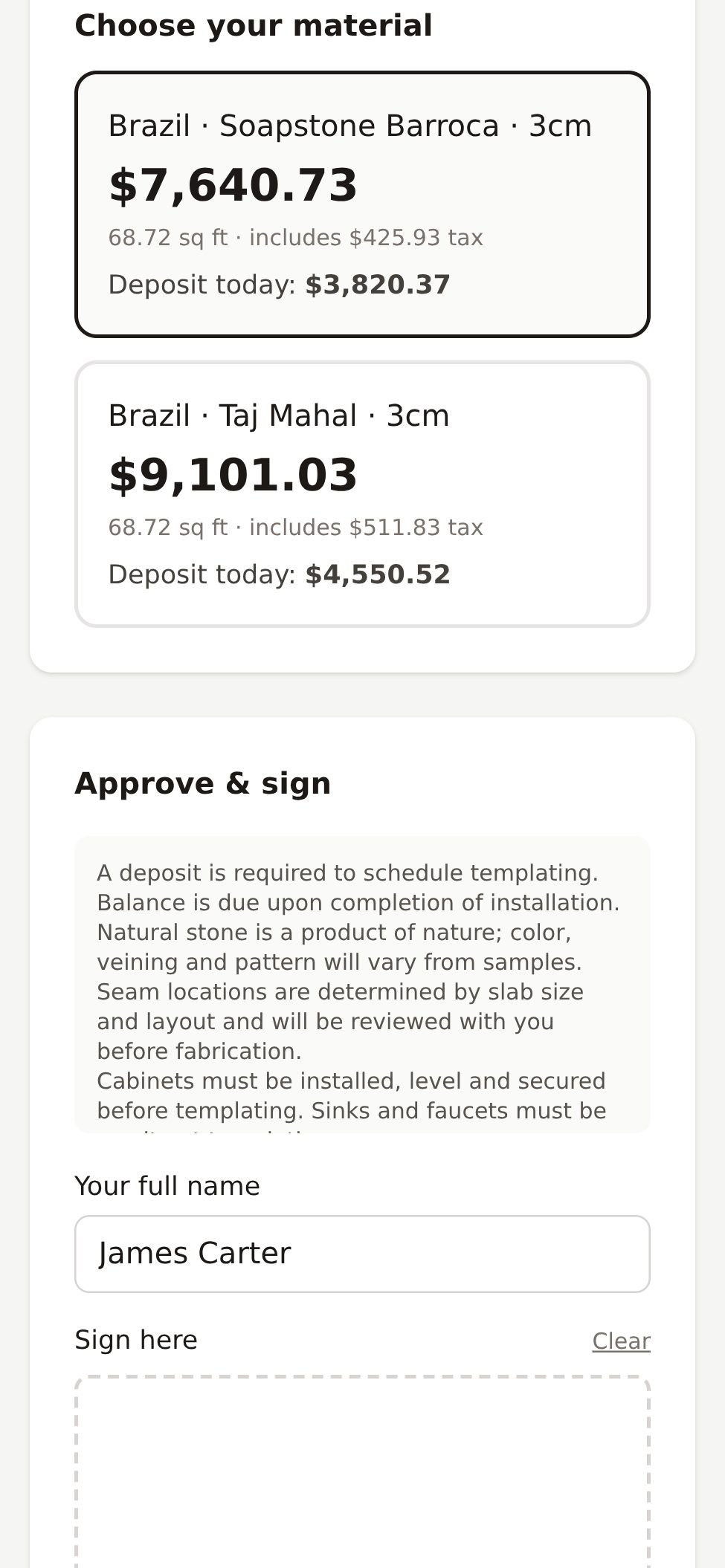
Choose your material
One card per material option, showing:
- The name you entered in Shown to customer as.
- The total price, tax included.
- The square footage and the tax amount ("includes $283.94 tax").
- Deposit today: the deposit % of that option's total.
The first option is selected to start. The customer taps a card to pick another.
Approve & sign
- The customer reads your terms (from Terms printed on quotes in company settings).
- They check Your full name. It starts with the customer's name on file.
- They sign in the Sign here box with a finger or mouse. Clear starts over.
- They tick "I approve this quote and the terms above, and I understand color and veining of natural stone vary."
- They tap Approve quote.
They see "Thank you! Your quote was approved. We will contact you to schedule templating." On your side, the quote becomes Accepted and SlabBoard creates the job, marks the lead Won and creates the deposit invoice. See Turn a quote into a job.
Good to know: If the customer rotates the phone or the browser window changes size, the signature box clears. If they get a message that the signature is required, they just need to sign again right before tapping Approve quote.
Good to know: You aren't notified when a customer approves or declines. Check your quotes list daily.
After approval
When the customer opens the link again, they see a green box: "Approved by {name} on {date}" and the chosen option with its total. Depending on your plan and setup, they may also see:
| Button | Shows when |
|---|---|
| Pay your $X deposit online | You take online payments (Pro plan with online payments connected) and the deposit isn't paid yet |
| Track your job | Your plan includes the customer portal (Pro and up) |
Declining
Under Not moving forward?, the customer can type an optional reason and tap Decline quote. They see "Thanks for letting us know." The quote becomes Declined and the reason is saved on it. Next time they open the link: "This quote was declined. Questions? Call {your phone}."
When the quote can't be approved
If the quote is past Valid until, or was never sent (still a Draft), the customer sees: "This quote has expired. Slab prices change often — please call {your phone} for an updated quote." To reopen it, edit Valid until on the quote and save. The same link works again.
Related
Still stuck?
Write to us and a real person will answer. [email protected]