
Turn a quote into a job
Accept a quote by phone or in person, or let the customer sign online, and see what SlabBoard creates for you: the job, its shop steps and the deposit invoice.
An accepted quote becomes a job. Whether your customer signs online or you mark it accepted yourself, SlabBoard does the same set-up work in one step, so the job is ready for templating and the deposit is ready to bill.
Before you start
- Owners, Admins, Sales and Office users can accept quotes.
- The quote can't be Declined or already turned into a job.
When the customer signs online
You don't need to do anything. When the customer clicks Approve quote on their quote link, the quote becomes Accepted and the job is created right away. The quote page shows Accepted at, Signed by and a link to the Job.
Good to know: You won't get an email or alert when this happens. Check Sales → Quotes (filter by Accepted) or your jobs list for new jobs in status Sold.
Mark a quote accepted yourself
Use this when the customer said yes in person, by phone or on paper.
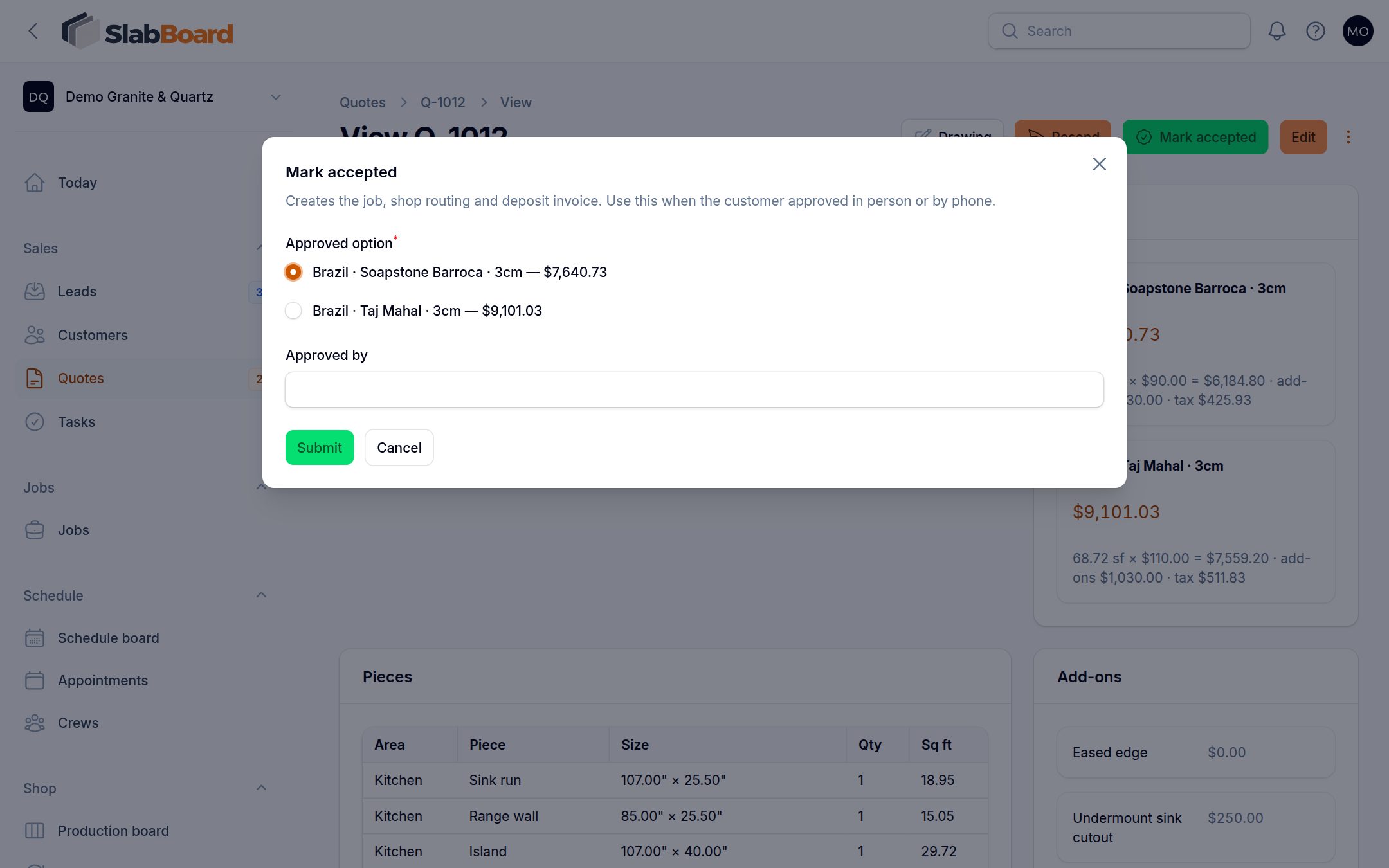
- Open the quote and click Mark accepted.
- Under Approved option, pick the material the customer chose. Each option shows its total.
- Type who approved it in Approved by (optional).
- Click Submit. You'll see "Job J-1011 created" and land on the new job.
Tip: Mark accepted works on a Draft or out-of-date quote too, so you don't have to send first. No signature is captured this way. Keep the paper copy if you have one.
What happens on acceptance
| What | Details |
|---|---|
| Quote | Status Accepted. Stores the chosen option, time, signer name and, if signed online, the signature and IP address. The quote is repriced one last time. |
| Job | A new job in status Sold, with the customer, salesperson, job-site address, material, square footage, contract amount (option subtotal before tax) and tax. The job name is the quote title. The first edge and sink on the quote are noted on the job. |
| Builder | For a trade customer, they become the job's builder. For a homeowner, their Referred by (partner) does. |
| Pieces | From the drawing (split at seams, with labels) if the quote was drawn, plus its slab layout. Otherwise from the quote's pieces, labeled P1, P2… |
| Shop steps | The default production steps are added. |
| Lead | A linked lead that is still open moves to Won. |
| Deposit invoice | If Deposit is more than 0%, a deposit invoice is created for that % of the job total (tax included), due right away. |
Important: The deposit invoice is created as a draft and is not emailed. Open it from the job and send it, or let the customer pay from their quote page if you take online payments. See Invoices.
After acceptance
- Edit and Send disappear from the quote. Use Open job to go to the job.
- The Drawing button still works on an accepted quote. Make further drawing changes on the job instead, so the accepted price stays as signed.
- To change the scope after signing, use a change order on the job.
Good to know: There is no "undo" for acceptance. If you accepted the wrong quote or option, contact support before you schedule anything.
Related
Still stuck?
Write to us and a real person will answer. [email protected]