
Manage customers and partners
Add homeowners and trade partners like builders and designers, mark tax-exempt customers, and see each customer's jobs, quotes, invoices and balance.
A customer is anyone you quote or bill: a homeowner, or a trade partner such as a builder, designer or kitchen showroom. Sales → Customers holds their contact details and shows everything you've done for them on one page.
Before you start
Owners, Admins, Sales and Office users can see and edit customers. Customers are on every plan.
Add a customer
- Go to Sales → Customers and click New customer.
- Pick the Type. Leave Homeowner for a homeowner. For a trade customer, pick Builder, Contractor, Designer, Kitchen & Bath Showroom, Cabinet Shop, Commercial or Other, and fill in Company.
- Enter the Contact name (required), Email, Phone and Secondary phone.
- Fill in the Address.
- Under Other, set Referred by (partner) if a builder or designer sent you this customer, turn on Tax exempt if needed, and add Notes.
- Click Create.
Tip: You rarely need to start here. Create quote on a lead finds or creates the customer for you, and the Customer field on a quote has a + button to add one on the spot.
Homeowners vs. trade partners
Any type other than Homeowner counts as a partner. Partners show up in the Referred by (partner) list on leads and customers, and they affect the job when a quote is accepted:
- Quote for a partner: the partner becomes the job's builder.
- Quote for a homeowner: the homeowner's Referred by (partner) becomes the job's builder.
That way you can see which builder or designer each job came through.
Tax-exempt customers
Turn on Tax exempt for builders, contractors or nonprofits who give you an exemption certificate. Every quote for this customer is then taxed at 0%, whatever Sales tax % the quote shows. The tax is removed when the quote is saved or sent.
Good to know: The Live totals box on the quote form still includes tax while you type. Check the totals on the quote page after you save. It shows the real figures without tax.
See a customer's history
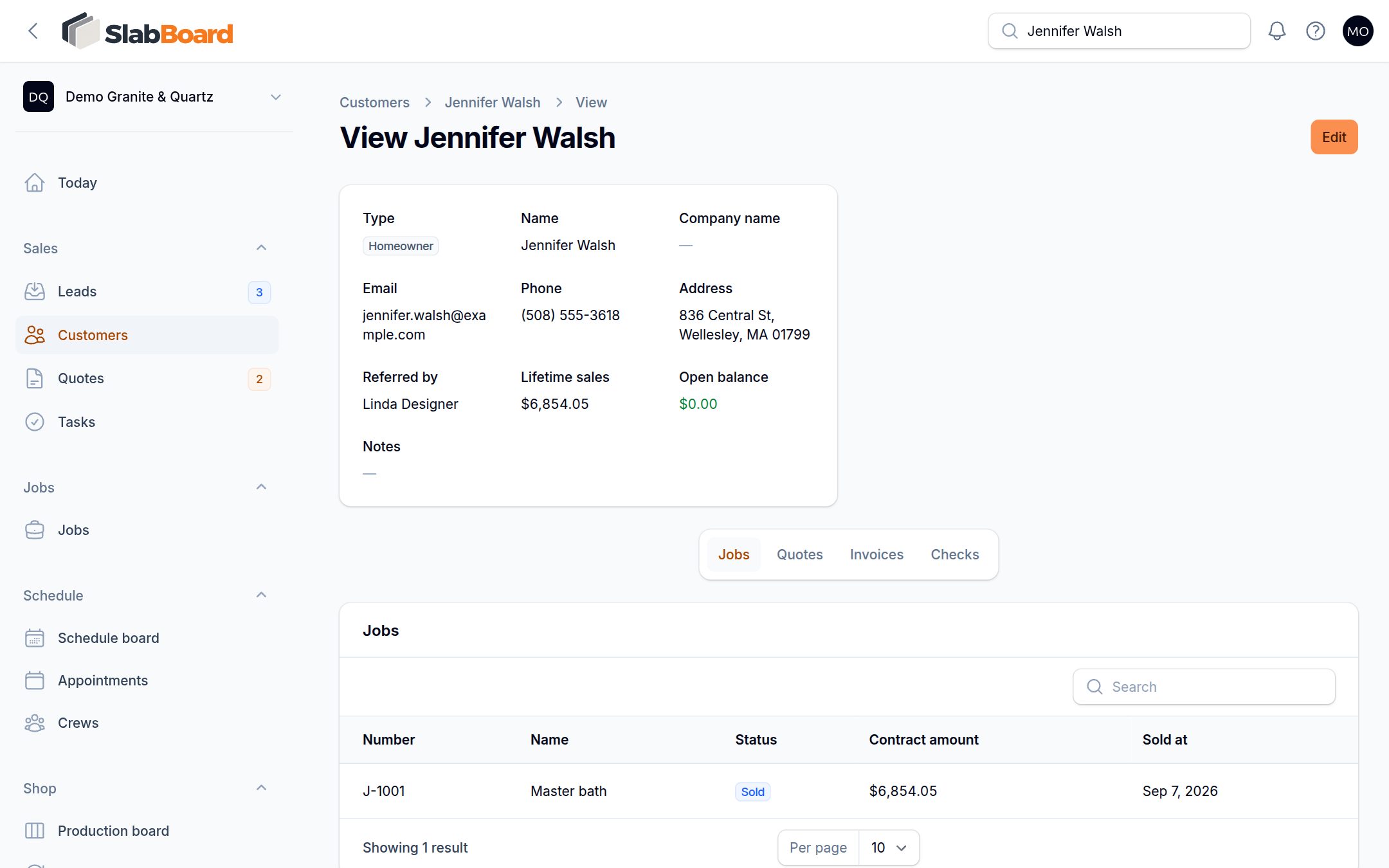
Click a customer to open their page. At the top you see their details plus:
- Lifetime sales: the total contract amount of all their jobs.
- Open balance: what they still owe on invoices. It shows in red when more than zero.
Below are tabs for Jobs, Quotes, Invoices and Checks. Click any row to open that record.
Find a customer
Use the search box in the list, or the search at the top of any page. Both search by name, company, email and phone. Filter the list by Type to see only builders, for example.
Delete a customer
Open the customer, click Edit, then Delete. You can also select several in the list and use the bulk Delete.
Good to know: Deleted customers can still be listed with the Trashed filter, but there is no way to restore them from the app yet. Contact support if you delete one by mistake.
Related
Still stuck?
Write to us and a real person will answer. [email protected]