
Use AI takeoff to fill in pieces
Upload a sketch, plan or photo with measurements and let SlabBoard's AI add the countertop pieces to your quote for you to check.
Typing pieces from a builder's plan or a customer's napkin sketch takes time. AI takeoff reads a drawing, PDF plan or photo with measurements and adds the pieces it finds to your quote's Pieces & measurements list. You check them, fix anything off, and save.
Before you start
- AI takeoff is part of the Premium plan.
- On Settings → Integrations, the AI assistant (Claude) card must show Connected. If it says Not configured, AI is turned off on our side: contact support to enable it.
- The file must be a JPEG, PNG, WEBP or PDF, up to 20 MB, with the measurements visible.
Run a takeoff
- Go to Sales → Quotes and click New quote, or open a quote and click Edit.
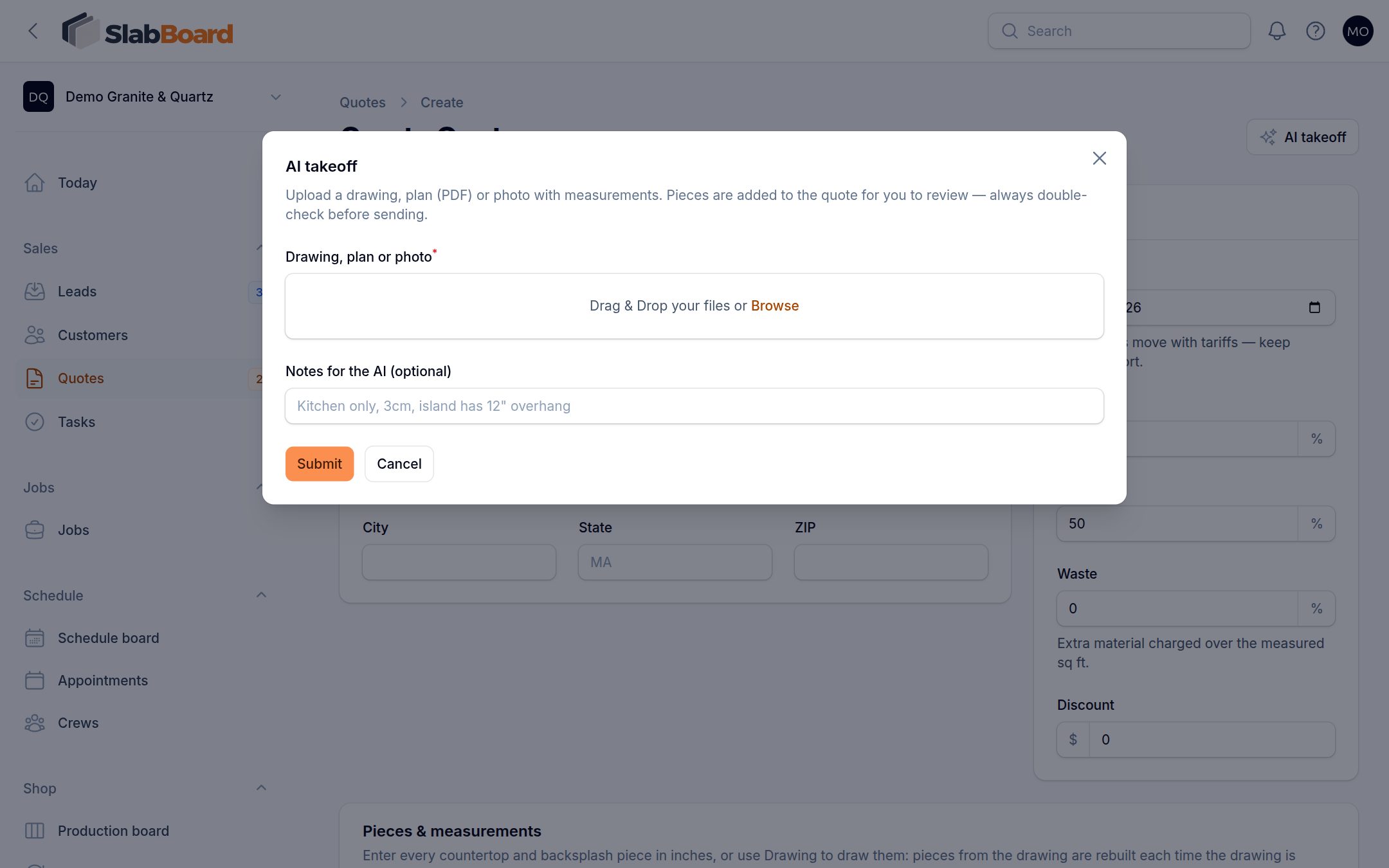
- Click AI takeoff at the top of the page.
- Under Drawing, plan or photo, upload the file.
- Optionally, add Notes for the AI (optional) to steer it, for example "Kitchen only, 3cm, island has 12" overhang".
- Click Submit and wait a few seconds.
- You'll see "N pieces added — please review measurements". The new rows appear under Pieces & measurements.
- Check every piece against the plan: Length (in), Depth (in), Qty and Backsplash. Each AI row has a note starting with "AI:" or "AI takeoff — verify" so you can spot it.
- Fill in the rest of the quote (add-ons and material options) and click Create or Save changes.
Important: Nothing is saved until you click Create or Save changes. If you leave the page first, the pieces are lost.
Important: Always double-check measurements before sending. The AI can misread handwriting, miss a piece or confuse length and depth. You are responsible for the price you send.
Good results
- Use a sharp, straight-on photo with good light. Avoid shadows and steep angles.
- Make sure every measurement is readable. Inches work best.
- For a multi-room plan, say which rooms to take off in the notes ("Kitchen and master bath only").
- Run it again with a different file or notes if the first try misses pieces. New pieces are added below the ones you already have. Blank rows are removed; rows you typed stay.
If it doesn't work
| Message | What to do |
|---|---|
| No measurable pieces found | The AI couldn't find dimensions. Try a clearer file or add notes. |
| Could not read that file | Try a clearer photo, or enter the pieces by hand. |
| AI is not configured on this server yet | AI is off for your account. Contact support. |
Good to know
- AI takeoff fills only the Pieces & measurements list. It doesn't draw the job, add edges or cutouts, or price anything by itself. Prices come from the material options and add-ons you choose.
- If you later draw the job in Drawing, the drawing adds its own pieces. Delete the AI rows then, or you'll count the square footage twice.
- Your uploaded file is deleted as soon as it's read. It isn't attached to the quote. Keep the original in your own files.
Related
Still stuck?
Write to us and a real person will answer. [email protected]