
Create and send invoices
Bill deposits, progress payments and final balances, send the invoice link by email or text, and see what is overdue.
Invoices tell your customer what they owe and when. SlabBoard keeps each invoice's balance up to date as payments come in, so you always know what is still open and what is overdue.
Before you start
- You need the Owner, Admin, Office or Sales role to open Finance → Invoices.
- Sales tax comes from the job's quote, or from Company settings → Quotes & taxes → Sales tax rate. Customers marked tax-exempt are never charged tax.
Invoices SlabBoard makes for you
When a quote is accepted and it has a deposit percentage, SlabBoard creates a Deposit invoice as a Draft, due today. It is not sent on its own. Open it and use Send when you are ready.
Create an invoice from a job
This is the fastest way, because the amounts come from the job.
- Open the job and go to the Invoices tab.
- Click New invoice and pick one:
- Deposit invoice: enter the Deposit percentage of the job total. Due today.
- Progress invoice: enter a Description and an Amount, and turn on Taxable if needed. Due in 15 days.
- Final invoice: bills everything not yet invoiced on the job (contract, tax and approved change orders). Due today.
- SlabBoard creates the invoice and opens it.
Good to know: The final invoice is based on what was already invoiced, not on what was paid. If every dollar is already on another invoice, you see "Nothing left to invoice".
Create an invoice by hand
- Go to Finance → Invoices and click New invoice.
- Pick the customer in Bill to. Optionally pick a Job.
- Choose a Type: Deposit, Progress, Final, Change Order, Service or Other.
- Check the Issue date and Due date (15 days out by default).
- Under Items, add each line with Description, Qty and Unit price. Turn on Taxable only for lines that carry sales tax. Click Add line for more.
- Add Notes to customer if you want, then click Create.
New invoices start as Draft.
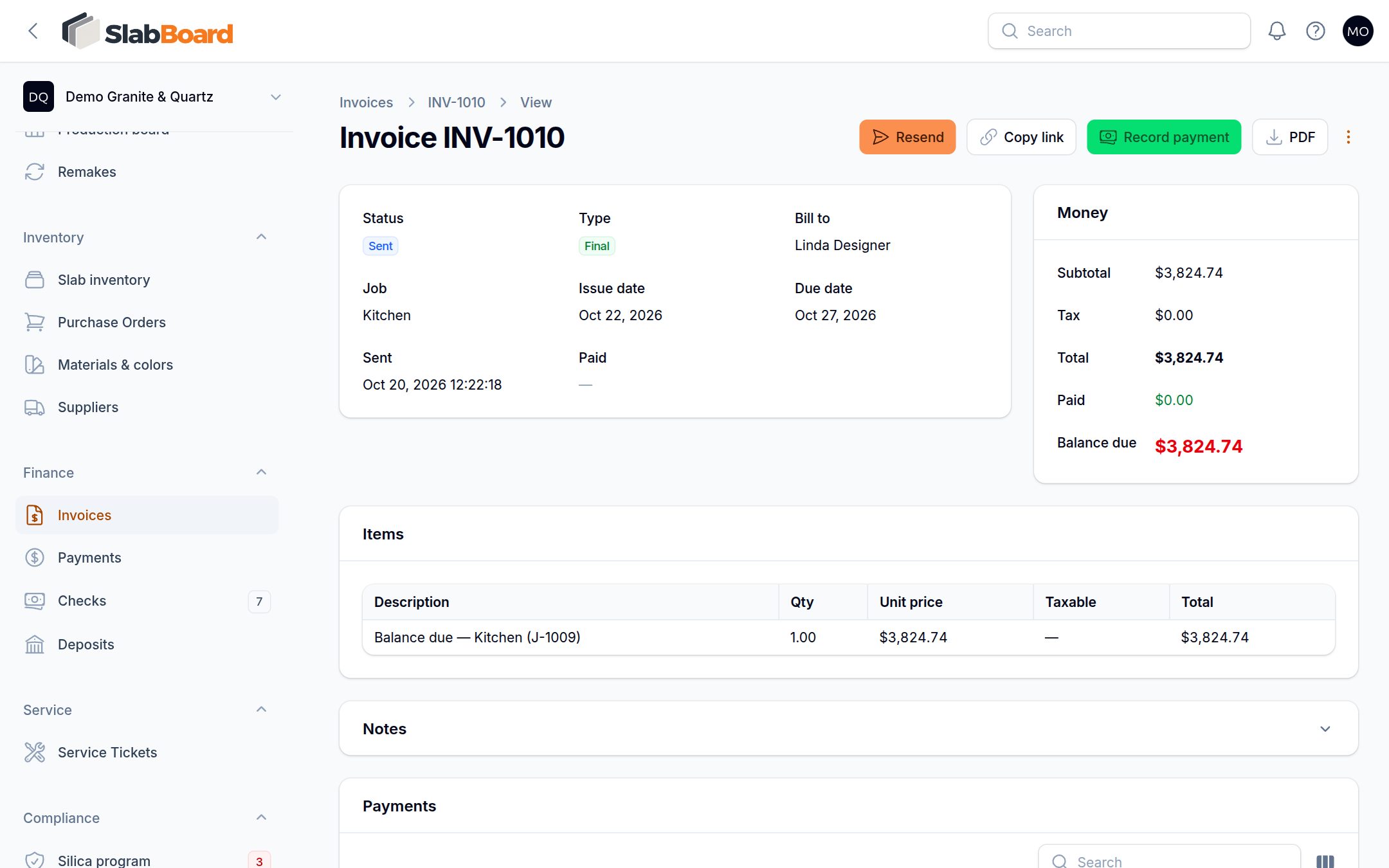
Send the invoice
- Open the invoice and click Send (or Resend).
- Leave Email on and check the address. On Pro and Premium plans you can also turn on Text message.
- Click Send in the dialog. The status changes from Draft to Sent.
The customer gets a link to view the invoice, download a PDF and see how to pay by check. If your shop takes online payments, the button reads "View and pay online" and they can pay by card or bank transfer.
You can also click Copy link to paste the invoice link into your own message, or PDF to download it.
Invoice statuses
You never pick a status. SlabBoard sets it from the payments.
| Status | What it means |
|---|---|
| Draft | Created, not sent yet |
| Sent | Sent, nothing paid yet |
| Partially Paid | Some money received, a balance is left |
| Paid | Balance is zero |
| Void | Canceled by you; no longer counts as owed |
Statuses can move backward. If a check bounces, its payment is reversed and the invoice goes back to Partially Paid or Sent.
Find overdue invoices
An invoice is overdue when it has a balance and its due date has passed. The red number next to Invoices in the menu counts them. In the list, the Due column shows "Overdue" in red. Use the Overdue or Has balance filters to see only those.
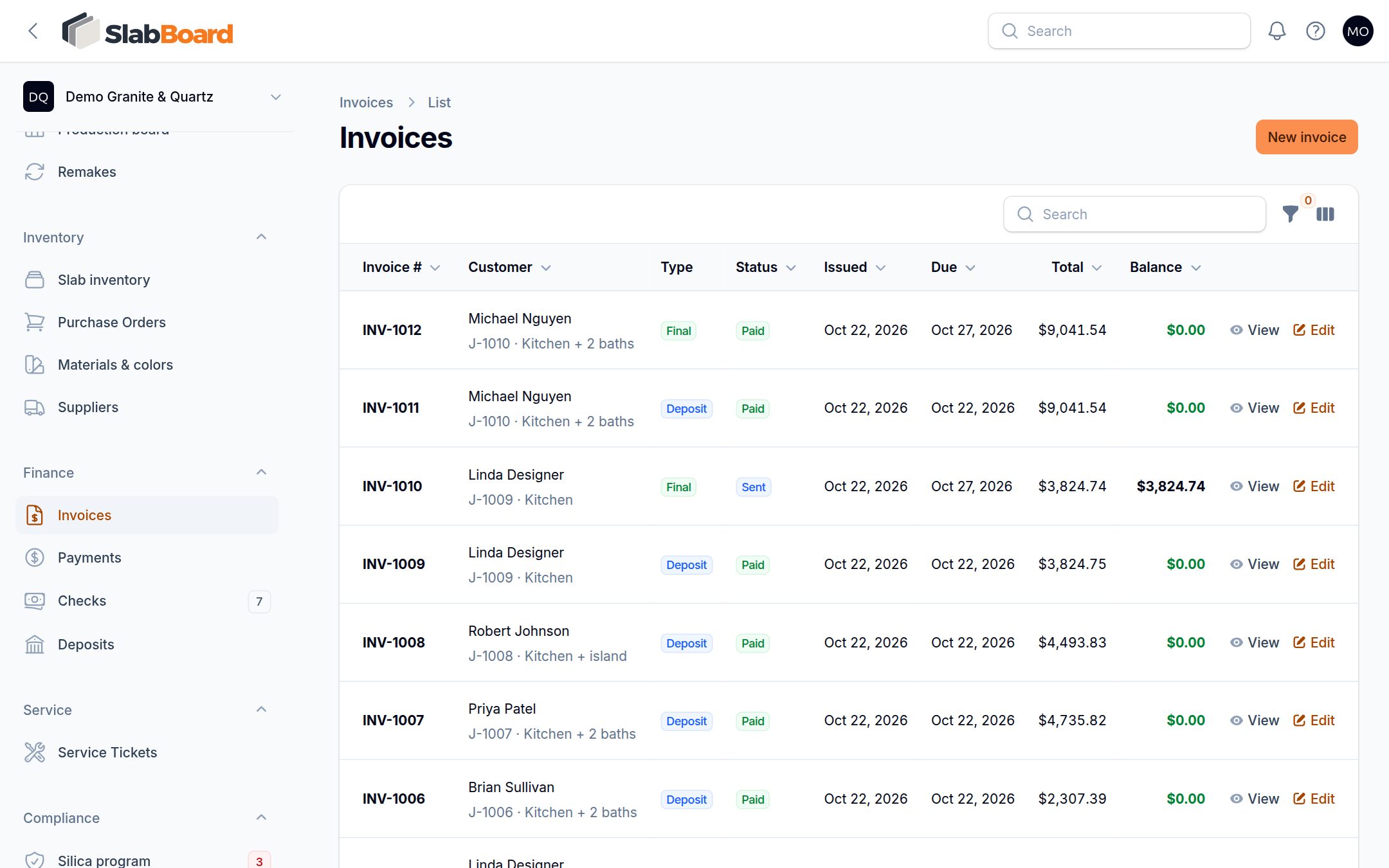
Edit or void an invoice
- Click Edit to change lines or dates. Totals and status recalculate. Paid invoices can still be edited, so be careful.
- To cancel an invoice, open More → Void invoice. A void invoice stays on record but no longer counts as owed, and it can't be edited.
Important: You can't void an invoice that has payments on it. A check payment can be reversed first (mark the check bounced or void). Cash, card, ACH, financing and other payments can't be reversed or deleted in SlabBoard, so enter them carefully. Invoices can't be deleted.
Good to know: QuickBooks sync is coming soon. There is no invoice export today.
Related
Still stuck?
Write to us and a real person will answer. [email protected]