
What your customer sees on the invoice link
See the invoice page your customer opens from your email or text, how they pay by check or online, and what happens after they pay.
Every invoice has its own web page for your customer. They open it from the invoice email or text, or from a link you paste yourself. They don't need an account or a password. This article shows what they see, so you can answer their questions.
How the customer gets the link
- You click Send on the invoice and choose email and, on plans with text messages, a text. The email subject is "Invoice INV-xxxx from" your company name, and replies go to your company email.
- Or you click Copy link on the invoice and paste it into your own email or message.
- If the invoice belongs to a job, it is also listed on the customer's job page, under Payments.
To check what the customer sees, open the invoice in SlabBoard and click More → Customer view.
Important: Anyone who has the link can open the invoice. Send it only to the right person.
What is on the page
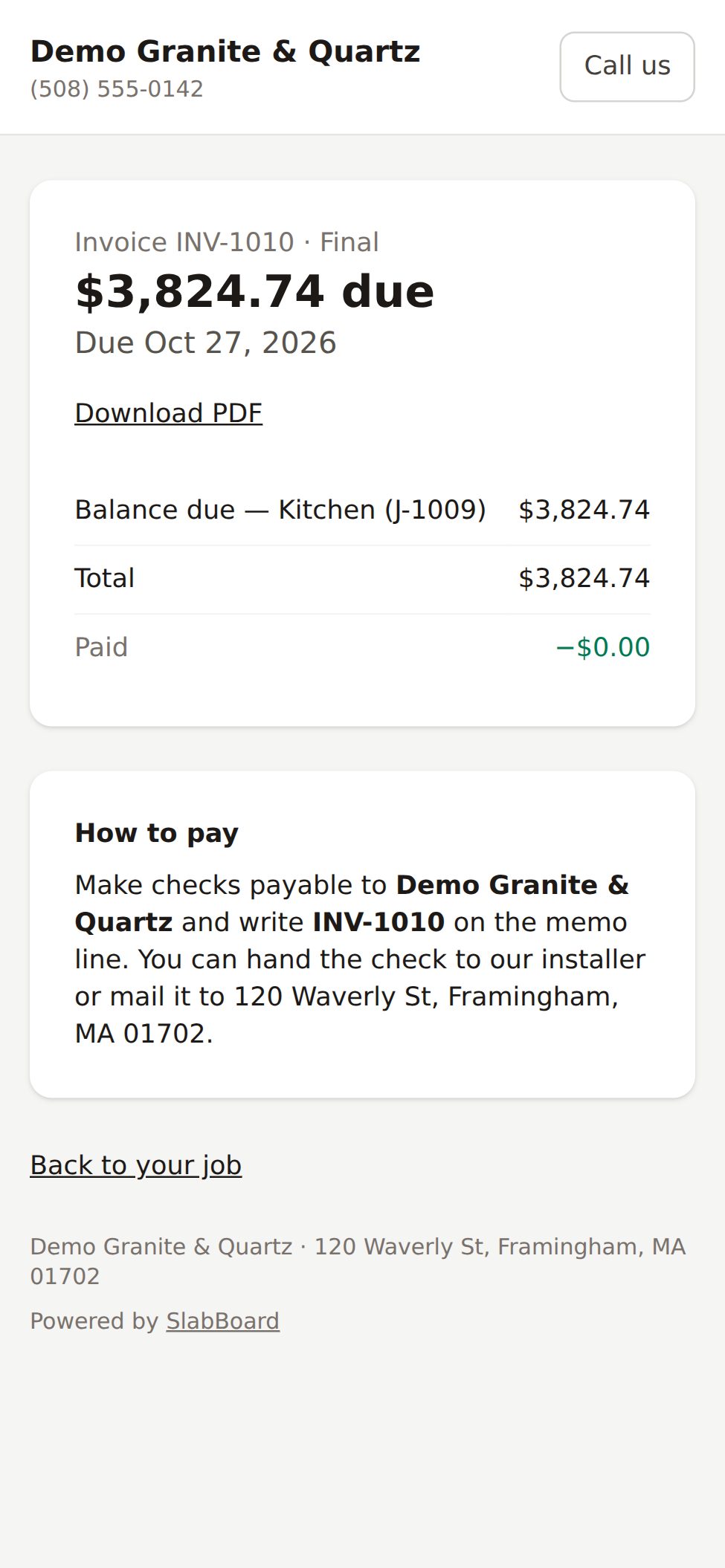
At the top:
- Invoice INV-xxxx and the invoice type, such as Deposit or Final.
- The amount still owed, in large type, for example "$3,630.94 due".
- Due and the due date.
- Download PDF, for a printable copy.
Below that, each line item with its amount, Sales tax (when there is tax), Total, and Paid (what they have already paid, shown as a minus).
The page always shows the current balance. If you record a payment in SlabBoard, the amount due goes down the next time they open the link.
Paying by check
While there is a balance, the page shows How to pay: make checks payable to your company, write the invoice number on the memo line, and hand the check to your installer or mail it to your company address. The address comes from your company settings, so keep it current.
When the check arrives, you record it in SlabBoard. See Record a payment.
Paying online by card or bank transfer
This part appears only when your shop takes online payments: a Pro or Premium plan, Stripe setup finished, and the status Active: customers can pay online. See Get paid online.
When it is on, the customer sees a Pay online box: "Pay $X by card or bank transfer. You pay" your company "directly, through Stripe." The check instructions move below it, under Prefer to pay by check?
- The customer clicks Pay $X.
- Stripe's secure payment form opens right on the page. They don't leave your invoice.
- They pay by card, or by bank account if you turned on ACH in Stripe.
Good to know about online payments:
- The customer pays the full balance. They can't choose a smaller amount online.
- The Pay box doesn't show when the invoice is paid, voided, or the balance is under $0.50.
- If something goes wrong, they see a message such as "Could not load the payment form. Check your connection and try again." and the button changes to Try again.
After the customer pays online
- Card: a green box says "Thank you. Your payment was received." Stripe emails them a receipt. The payment is on the invoice in SlabBoard right away, and you get a "Paid online" notification.
- Bank transfer: an amber box says "Your payment is being processed." Bank transfers take a few business days. The payment appears on the invoice once the bank confirms it. The customer doesn't need to do anything else.
The PDF
Download PDF gives the customer a printable invoice with your company details, BILL TO, the job (and its PO # if it has one), the line items, Sales tax, Total, Paid, Balance due, a list of Payments received, and the How to pay check instructions. It is the same PDF you get with the PDF button in SlabBoard.
Good to know: Voiding an invoice doesn't change what its link shows. A voided invoice still shows the old amount due and the check instructions (only the Pay online box is hidden). If you void an invoice the customer already received, let them know.
Related
Still stuck?
Write to us and a real person will answer. [email protected]