
Record a payment
Log checks, cash, card, ACH and financing payments against an invoice so balances and statuses stay correct.
Every time money comes in outside SlabBoard (a check, cash, a card run on your terminal, an ACH transfer, financing), record it here. SlabBoard lowers the invoice balance, updates its status, and for checks starts tracking the check until it clears.
Payments made through the invoice link with online payments are recorded on their own. Don't enter them again.
Before you start
- You need the Owner, Admin or Office role to open Finance → Payments. Sales users can see invoices but not payments.
- Have the invoice number handy. Applying the payment to the right invoice matters (see the warning below).
Record a payment from an invoice
This is the safest way, because the invoice is already picked for you.
- Open the invoice and click Record payment.
- Pick the Method: Check, Cash, Credit Card, ACH / Bank Transfer, Financing or Other.
- Check the Amount. It starts at the full invoice balance; change it for a partial payment.
- Set Received on to the day you got the money.
- Leave Apply to invoice on this invoice.
- For anything but a check, add a Reference (for example, card last 4 or the ACH trace number).
- Click Submit. You see "Payment recorded" and the invoice balance and status update.
You can also click Record payment on a job page, on the job's Payments tab, or at the top of Finance → Payments. On the Payments screen you first pick the Customer, then the Job, then the invoice in Apply to invoice; picking an invoice fills in its balance as the amount.
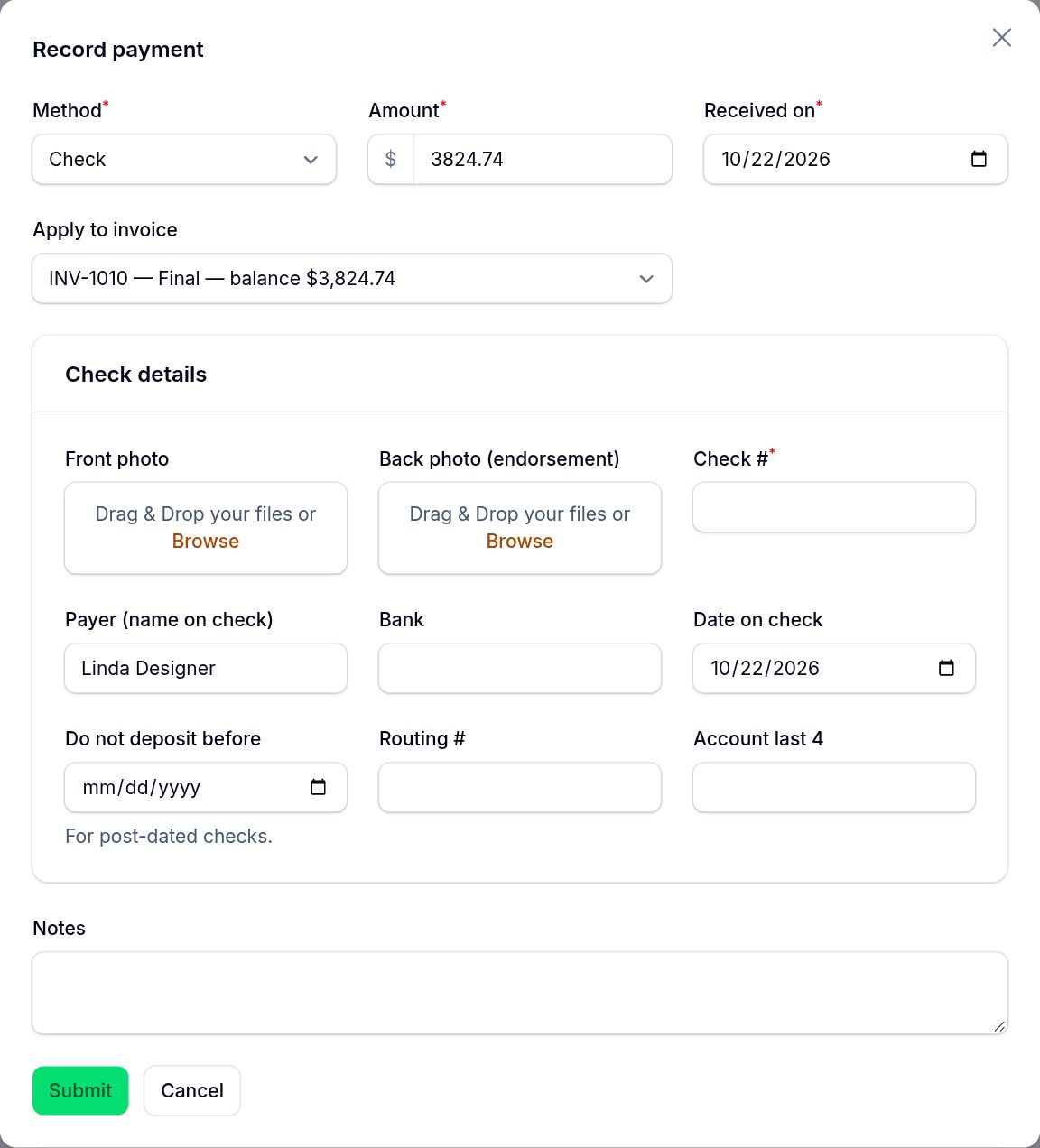
Add the check details
When Method is Check, a Check details section appears:
- Upload the Front photo and the Back photo (endorsement). Take them with your phone before the check goes to the bank.
- Enter the Check # (required).
- Fill in Payer (name on check), Bank and Date on check.
- If the check is post-dated, set Do not deposit before. SlabBoard won't let it go into a deposit before that date.
- Optionally add Routing # and Account last 4.
Tip: If AI check scanning is turned on for your account, uploading the front photo fills in the check number, payer, bank, date, routing number, last 4 and amount for you. Always compare them with the check. You can see whether it is on under Settings → Integrations → AI assistant (Claude).
The check then appears under Finance → Checks as Received – To Deposit. See Track checks from pickup to cleared.
Find past payments
Finance → Payments lists every payment with Date, Customer, Job, Invoice, Method, Amount, Status and Reference. The Total at the bottom adds up only completed payments.
Filter by Method, Status, Customer, or a Received from / Received until date range.
| Status | What it means |
|---|---|
| Completed | The payment counts toward the balance |
| Reversed | The check bounced or was voided; the amount is owed again |
On a check payment, the Check row action opens the check.
Print a lien waiver
For jobs billed to a builder, completed payments have a Lien waiver row action. It opens a PDF conditional waiver and release for that payment.
Important: Some states require their own statutory lien waiver form. Check your state's rules before you rely on this document.
Fix a mistake
What you can undo depends on the method:
- Check: open the check in Finance → Checks. Use Edit to fix typos or add photos (the amount, customer, job and invoice can't be changed there). If the whole entry is wrong, use Void / returned before it is deposited. The payment is reversed and you can enter it again correctly.
- Cash, Credit Card, ACH / Bank Transfer, Financing, Other and online payments: these can't be edited, deleted or reversed in SlabBoard. Double-check the amount and invoice before you save.
Important: If you leave Apply to invoice on Unapplied (job credit), the money lowers the job's balance but not any invoice's. The invoice stays open, and can show as overdue, and you can't apply that payment to an invoice later. Always pick the invoice when you know it.
Good to know: Checks the crew collects in the field app are saved as unapplied job credit, for the same reason. See Track checks from pickup to cleared.
Related
Still stuck?
Write to us and a real person will answer. [email protected]