
What the customer sees when approving a layout
Walk through the layout approval page your customer opens from the email, so you can explain it on the phone and know what happens when they answer.
When you send a slab layout for approval, your customer gets an email and opens a single page where they review the layout and sign. They don't need an account or a password, and it works on a phone. This article shows what they see, so you can walk them through it.
Before you start
- Layout approval needs the Pro plan.
- You send it from the job's slab layout with ✉ Send for approval, or from the job's Layout approval tab. See Send a layout for customer approval.
The email
- Subject: Please approve your countertop layout, from your company. Replies go to your company email.
- Heading "Your slab layout is ready", then: "We've laid out your countertop pieces on your actual slab(s) for {job name}. Please review the seam locations and veining, then approve or ask for changes."
- A Review layout button that opens the approval page.
The approval page
At the top, the customer sees your logo and company name, the job number (and slab tag, if any), and the heading Your countertop layout, with: "Please check seam locations, overhangs and how the veining flows. Once you approve, we cut your stone."
Below that:
- The countertop preview: the countertops filled with the stone from where each piece is cut, with the caption "How your countertops come out of these slabs: each piece shows the stone exactly where it will be cut."
- Where each piece is cut: the slab sheet, each slab photo with the pieces outlined and labeled.
- Your Notes for the customer, if you uploaded the layout by hand and wrote some.
They can zoom the pictures with their fingers on a phone.
Good to know: The customer sees these two pictures only. The 3D view stays in SlabBoard. To show 3D, use your screen at the showroom or on a video call.
Approve or ask for changes
At the bottom there is a short form:
- Your full name, already filled with the customer's name.
- Sign here: they sign with a finger or the mouse. Clear starts over.
- Comments (required if you want changes).
- Two buttons: Approve layout and Request changes.
| The customer clicks | They need | They see | In SlabBoard |
|---|---|---|---|
| Approve layout | Name and signature | "Layout approved — we will start fabrication." | Status Approved, signer and signature saved. The job moves to In Production. |
| Request changes | A comment | "Thanks — we received your comments and will send an updated layout." | Status Changes Requested, with their comment. The job status doesn't change. |
If they click Approve layout without signing, they see "Please sign in the box."
After answering, the page shows "Approved by {name} — thank you!" or "You asked for changes — we will send an updated layout." with their comment. They can't change their answer from the page.
Things to tell your customer
- The link works for 60 days. After that it shows an error. Send the layout again to get a new link.
- They approve what was sent. If you change the layout after sending, they keep seeing the old version until you send again. Each send is a new link.
- Natural stone varies. The pictures come from photos of the real slabs, but the stone can look a little different in person.
- You won't get an alert when they answer. Check the job's Layout approval tab, or ask them to call you after signing.
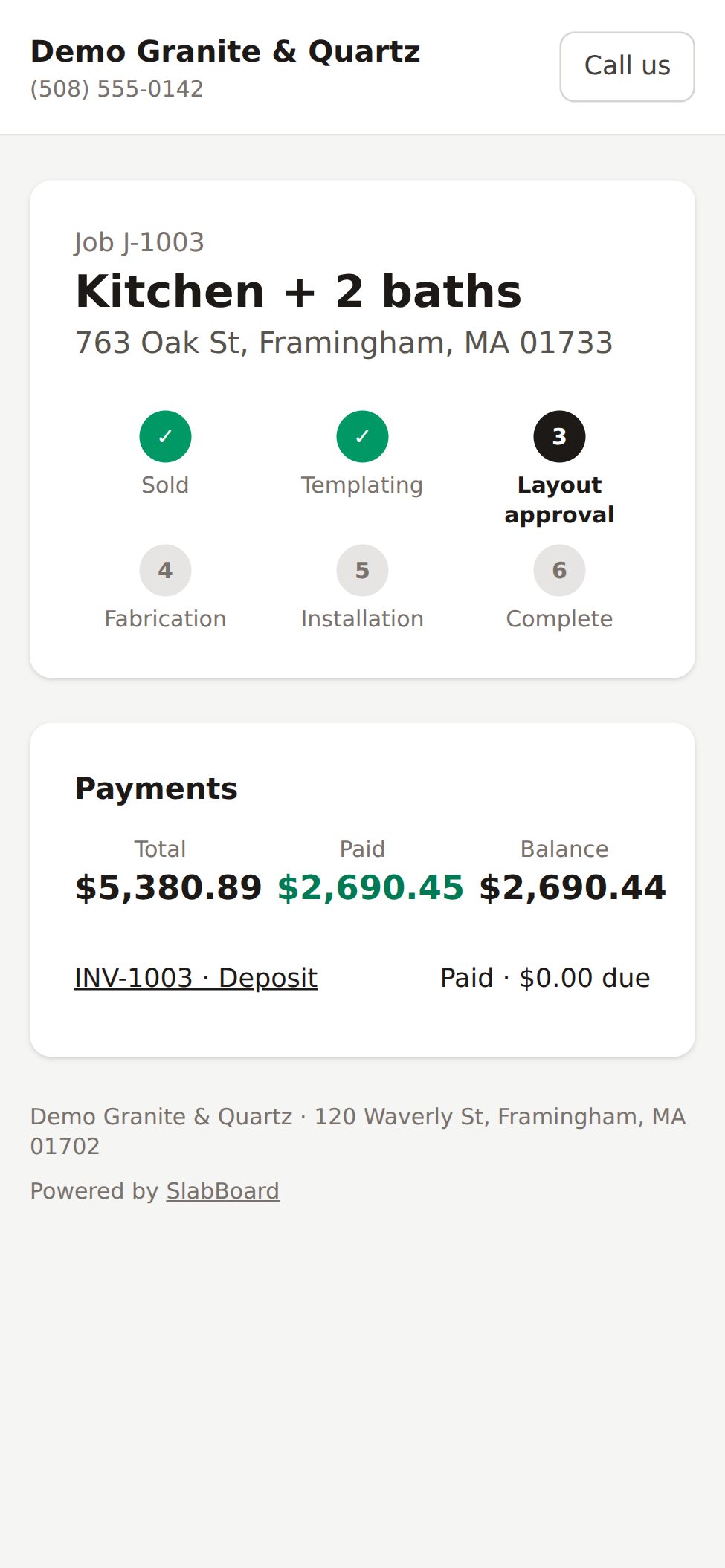
- The page is only in the email. The customer's job page shows the Layout approval step while you wait for them, but it has no link to the approval page. Ask them to keep the email.
Related
Still stuck?
Write to us and a real person will answer. [email protected]