
Service tickets for repairs and warranty
Log a punch list, repair, warranty claim or sealing visit after install, schedule the crew and close it out with what was done.
After the install, the work isn't always over: a chipped edge, a seam to touch up, a warranty call a year later, a sealing visit. A service ticket tracks each one from the customer's call to the fix, with its own visit on the schedule.
Before you start
- Service tickets are on every plan.
- Owners, Admins, Office, Sales and Installers can open Service → Service Tickets.
Open a ticket
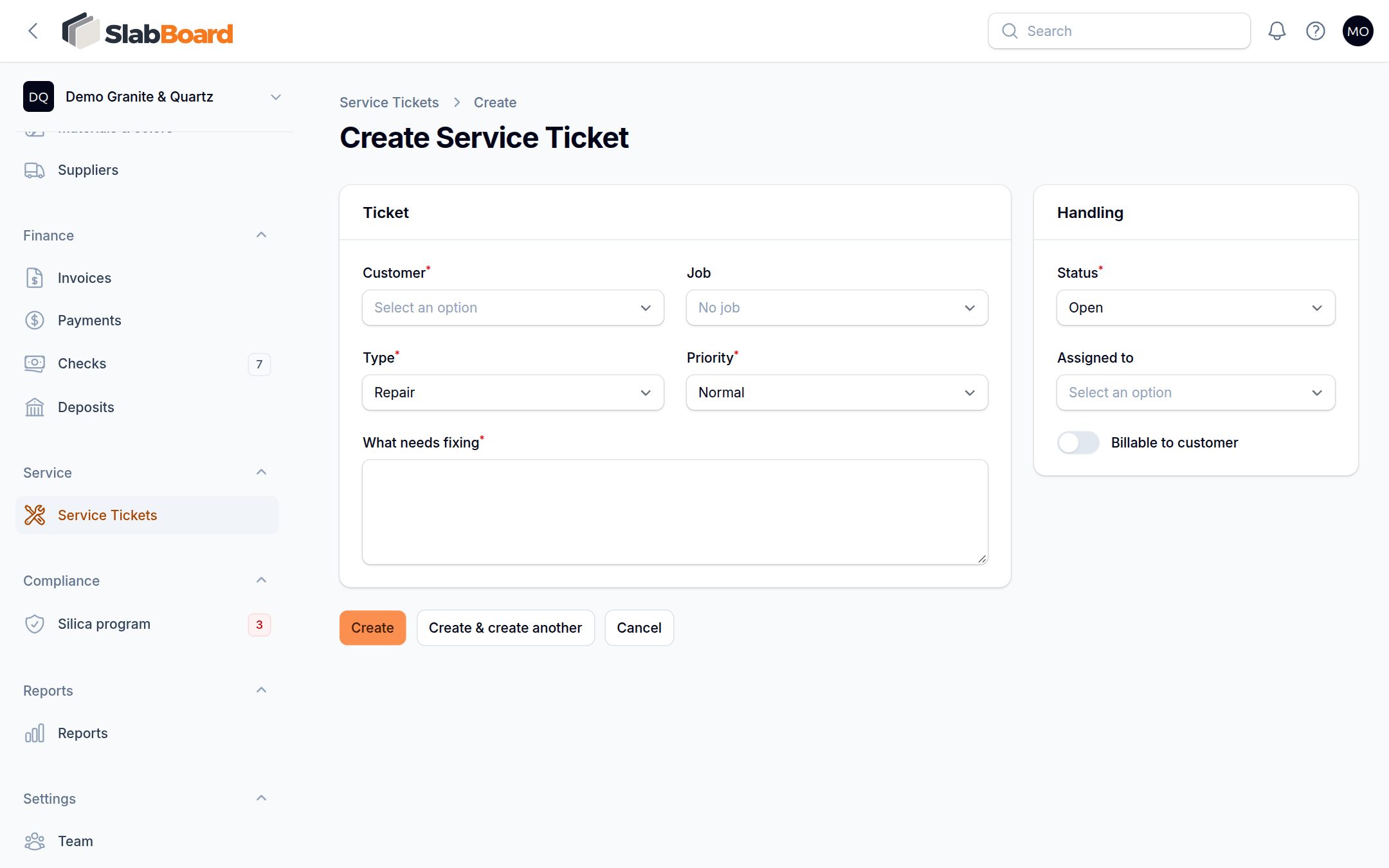
- Go to Service → Service Tickets and click New service ticket. Or, on the job page, open the Service tab and click New service ticket. From the job, the customer and job are set for you, so skip step 2.
- Pick the Customer and, if it's about a job, the Job. Builder customers can pick from their builder's jobs.
- Pick the Type and Priority, and describe What needs fixing.
- Under Handling, set Assigned to. Turn on Billable to customer if they will pay for it, and enter the Charge.
- Click Create. The ticket gets a number like ST-1001 and the status Open.
| Type | Use it for |
|---|---|
| Punch List | Items left open at install |
| Repair | Damage or a problem to fix |
| Warranty Claim | Work covered by your warranty |
| Maintenance / Sealing | Routine visits like resealing |
Schedule the visit
- Open the ticket and click Schedule visit.
- Pick Type (Repair, or Service for maintenance tickets), the Crew and Starts (tomorrow at 9:00 by default). Add Notes for the crew.
- Save. You see "Visit scheduled". The visit shows on the schedule board and in the crew's field app, and the ticket moves to Scheduled.
The ticket's Next visit shows the date.
Track punch items
On the ticket, the Punch items tab lists what needs fixing, one line per item.
- Click Add open punch items from job to bring over everything still open on the job's punch list.
- Click Add punch item to add one more.
- Click Done on each item as it's fixed.
Resolve the ticket
- Click Resolve on the ticket.
- Write What was done.
- Leave Mark all punch items done on to close the items in one step.
- Save. The ticket is Resolved and the Resolved date is set.
Set the status to Closed in Edit when you're fully done, for example after the customer pays.
Work the list
The list shows open, scheduled and in-progress tickets by default. Use the Status filter to see resolved and closed ones. The badge next to Service Tickets in the menu counts tickets that are Open or In Progress.
Good to know: The Charge on a billable ticket is a note for the office. SlabBoard doesn't create an invoice for it. Create one from Finance → Invoices if you bill the customer.
Good to know: Templaters, installers and fabricators don't see the charge unless Show job prices to the field crew is on.
Related
Still stuck?
Write to us and a real person will answer. [email protected]